
PORTABLE BALANCER "BALANSET-1A"
A Dual-Channel PC-Based Dynamic Balancing System
OPERATION MANUAL
rev. 1.56 May 2023
2023 | Estonia, Narva
SAFETY NOTICE: This device complies with EU safety standards. Class 2 Laser Product. Follow rotating equipment safety procedures. See full safety information below →
1. BALANCING SYSTEM OVERVIEW
Balanset-1A balancer provides single- and two-plane dynamic balancing services for fans, grinding wheels, spindles, crushers, pumps and other rotating machinery.
Balanset-1A balancer includes two vibrosensors (accelerometers), laser phase sensor (tachometer), 2-channel USB interface unit with pre-amplifiers, integrators and ADC acquisition module and Windows based balancing software. Balanset-1A requires notebook or other Windows (WinXP...Win11, 32 or 64bit) compatible PC.
Balancing software provides the correct balancing solution for single-plane and two-plane balancing automatically. Balanset-1A is simple to use for non-vibration experts.
All balancing results saved in archive and can be used to create the reports.
Key Features
Easy to Use
- • User selectable trial mass
- • Trial mass validity popup
- • Manual data input
Measurement Capabilities
- • RPM, amplitude and phase
- • FFT spectrum analysis
- • Waveform and spectrum display
- • Dual-channel simultaneous data
Advanced Functions
- • Saved influence coefficients
- • Trim balancing
- • Mandrel eccentricity calc.
- • ISO 1940 tolerance calc.
Data Management
- • Unlimited balancing data storage
- • Vibration waveform storage
- • Archive and reports
Calculation Tools
- • Split weight calculation
- • Drill calculation
- • Changing correction planes
- • Polar graph visualization
Analysis Options
- • Remove or leave trial weights
- • RunDown charts (experimental)
2. SPECIFICATION
| Parameter | Specification |
|---|---|
| Measurement range of the root-mean-square value (RMS) of the vibration velocity, mm/sec (for 1x vibration) | from 0.2 to 80 |
| The frequency range of the RMS measurement of the vibration velocity, Hz | from 5 to 1000 (amplitude error ≤10% from 5 to 550 Hz; up to 20% from 550 to 1000 Hz) |
| Number of the correction planes | 1 or 2 |
| Range of the frequency of rotation measurement, rpm | 250 – 90000 |
| Range of the vibration phase measurement, angular degrees | from 0 to 360 |
| Error of the vibration phase measurement, angular degrees | ± 1 |
| Measurement accuracy of RMS vibration velocity | ±(0.1 + 0.1×Vmeasured) mm/sec |
| Measurement accuracy of rotation frequency | ±(1 + 0.005×Nmeasured) rpm |
| Mean time between failures (MTBF), hours, min | 1000 |
| Average service life, years, min | 6 |
| Dimensions (in hard case), cm | 39*33*13 |
| Mass, kg | <5 |
| Overall dimensions of the vibrator sensor, mm, max | 25*25*20 |
| Mass of the vibrator sensor, kg, max | 0.04 |
|
Operating Conditions: - Temperature range: from 5°C to 50°C - Relative humidity: < 85%, unsaturated - Without strong electric-magnetic field & strong impact |
|
3. PACKAGE
Balanset-1A balancer includes two single-axis accelerometers, laser phase reference marker (digital tachometer), 2-channel USB interface unit with pre-amplifiers, integrators and ADC acquisition module and Windows based balancing software.
Delivery Set
| Description | Number | Note |
|---|---|---|
| USB interface unit | 1 | |
| Laser phase reference marker (tachometer) | 1 | |
| Single-axis accelerometers | 2 | |
| Magnetic stand | 1 | |
| Digital scales | 1 | |
| Hard case for transportation | 1 | |
| "Balanset-1A". User's manual. | 1 | |
| Flash disk with balancing software | 1 |
4. BALANCE PRINCIPLES
4.1. "Balanset-1A" includes (fig. 4.1) USB interface unit (1), two accelerometers (2) and (3), phase reference marker (4) and portable PC (not supplied) (5).
Delivery set also includes the magnetic stand (6) used for mounting the phase reference marker and digital scales 7.
X1 and X2 connectors intended for connection of the vibration sensors respectively to 1 and 2 measuring channels, and the X3 connector used for connection of the phase reference marker.
The USB cable provides power supply and connection of the USB interface unit to the computer.

Fig. 4.1. Delivery set of the "Balanset-1A"
Mechanical vibrations cause an electrical signal proportional to the vibration acceleration on the output of the vibration sensor. Digitized signals from ADC module transferred via USB to the portable PC (5). Phase reference marker generates the pulse signal used to calculate rotation frequency and vibration phase angle. Windows based software provides solution for single-plane and two-plane balancing, spectrum analyzing, charts, reports, storage of influence coefficients
5. SAFETY PRECAUTIONS
⚡ ATTENTION - Electrical Safety
5.1. When operating on 220V electrical safety regulations must be observed. It is not allowed to repair the device when connected to 220 V.
5.2. If you use the appliance in a low quality AC power environment or in the presence of network interference it is recommended to use standalone power from computer's battery pack.
⚠️ Additional Safety Requirements for Rotating Equipment
- !Machine Lockout: Always implement proper lockout/tagout procedures before installing sensors
- !Personal Protective Equipment: Wear safety glasses, hearing protection, and avoid loose clothing near rotating machinery
- !Secure Installation: Ensure all sensors and cables are securely fastened and cannot be caught by rotating parts
- !Emergency Procedures: Know location of emergency stops and shutdown procedures
- !Training: Only trained personnel should operate balancing equipment on rotating machinery
6. SOFTWARE AND HARDWARE SETTINGS
6.1. USB drivers and balancing software installation
Before working install drivers and balancing software.
List of folders and files
Installation disk (flash drive) contains the following files and folders:
- Bs1Av###Setup – folder with "Balanset-1A" balancing software (### – version number)
- ArdDrv – USB drivers
- EBalancer_manual.pdf – this manual
- Bal1Av###Setup.exe – setup file. This file contains all archived files and folders mentioned above. ### – version of "Balanset-1A" software.
- Ebalanc.cfg – sensitivity value
- Bal.ini – some initialization data
Software Installation procedure
For installing drivers and specialized software run file Bal1Av###Setup.exe and follow setup instructions by pressing buttons «Next», «ОК» etc.
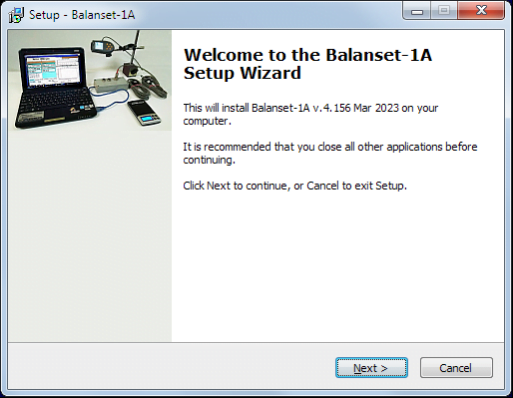
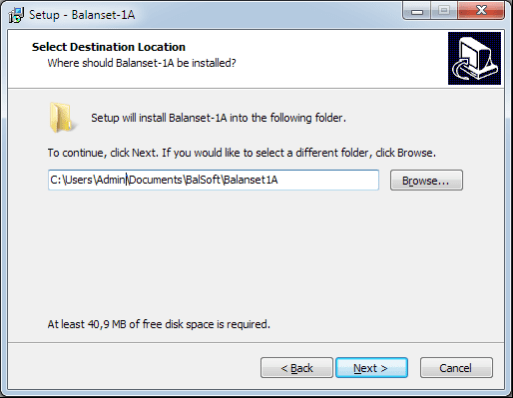
Choose setup folder. Usually the given folder should not be changed.
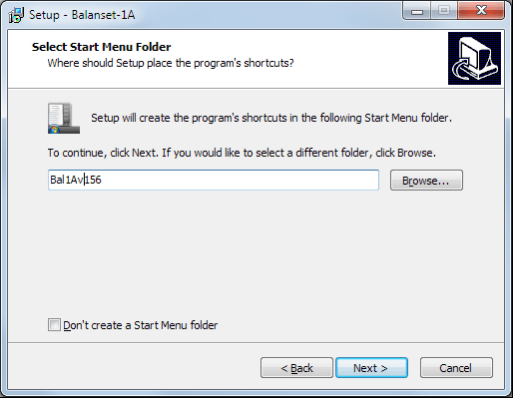
Then the program requires specifying Program group and desktop folders. Press button Next.
Finishing Installation
- ✓Install sensors on the inspected or balanced mechanism (Detailed information about how to install the sensors is given in Annex 1)
- ✓Connect vibration sensors 2 and 3 to the inputs X1 and X2, and phase angle sensor to the input X3 of USB interface unit.
- ✓Connect USB interface unit to the USB-port of the computer.
- ✓When using the AC power supply connect the computer to the power mains. Connect the power supply to 220 V, 50 Hz.
- ✓Click shortcut "Balanset-1A" on desktop.
7. BALANCING SOFTWARE
7.1. General
Initial window
When running the program "Balanset-1A" the Initial window, shown in Fig. 7.1, appears.

Fig. 7.1. Initial window of the "Balanset-1A"
There are 9 buttons in the Initial window with the names of the functions realized when click on them.
F1-«About»
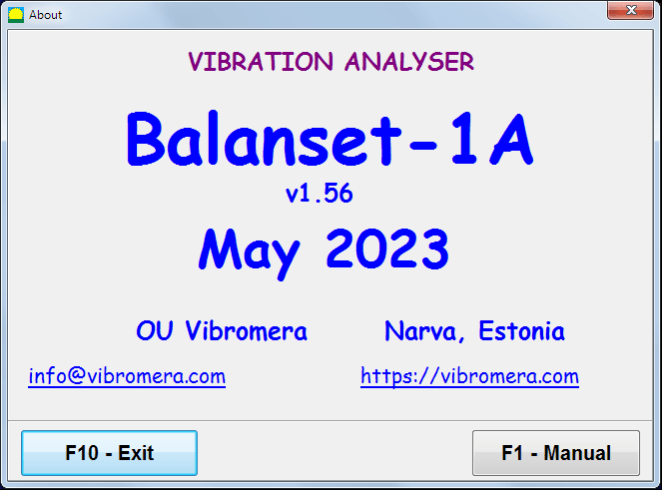
Fig. 7.2. F1-«About» window
F2-«Single plane», F3-«Two plane»
Pressing "F2- Single-plane" (or F2 function key on the computer keyboard) selects the measurement vibration on the channel X1.
After clicking this button, the computer display diagram shown in Fig. 7.1 illustrating a process of measuring the vibration only on the first measuring channel (or the balancing process in a single plane).
Pressing the "F3-Two-plane" (or F3 function key on the computer keyboard) selects the mode of vibration measurements on two channels X1 and X2 simultaneously. (Fig. 7.3.)
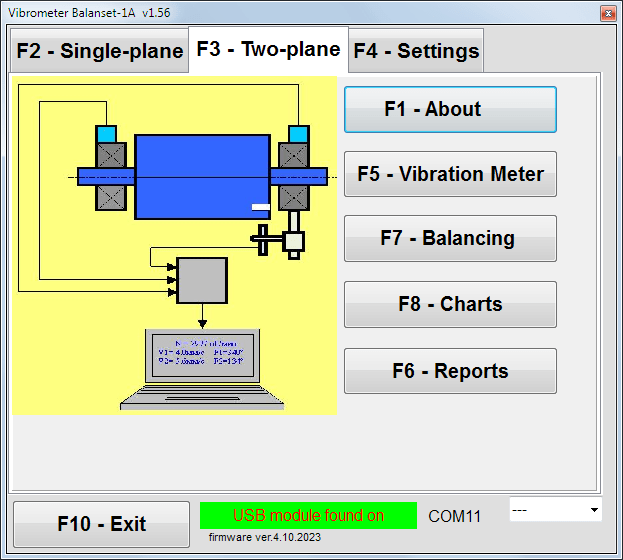
Fig. 7.3. Initial window of the "Balanset-1A". Two plane balancing.
F4 – «Settings»
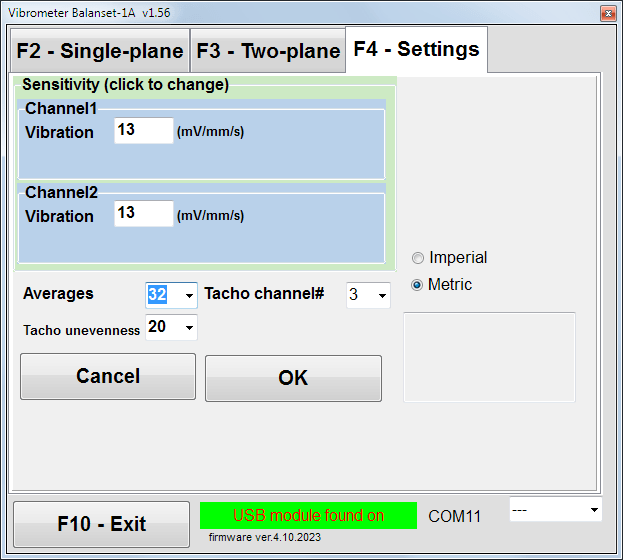
Fig. 7.4. "Settings" window
In this window you can change some Balanset-1A settings.
- Sensitivity. The nominal value is 13 mV / mm/s.
Changing the sensitivity coefficients of sensors is required only when replacing sensors!
Attention!
When you enter a sensitivity coefficient its fractional part is separated from the integer part with the decimal point (the sign ",").
- Averaging - number of averaging (number of revolutions of the rotor over which data is averaged to more accuracy)
- Tacho channel# - channel# the Tacho is connected. By default - 3rd channel.
- Unevenness - the difference in duration between adjacent tacho pulses, which above gives the warning "Failure of the tachometer"
- Imperial/Metric - Select the system of units.
Com port number is assigned automatically.
F5 – «Vibration meter»
Pressing this button (or a function key of F5 on the computer keyboard) activates the mode of vibration measurement on one or two measuring channels of virtual Vibration meter depending on the buttons condition "F2-single-plane", "F3-two-plane".
F6 – «Reports»
Pressing this button (or F6 function key on the computer keyboard) switches on the balancing Archive, from which you can print the report with the results of balancing for a specific mechanism (rotor).
F7 – «Balancing»
Pressing this button (or function key F7 on your keyboard) activates balancing mode in one or two correction planes depending on which measurement mode is selected by pressing the buttons "F2-single-plane", "F3-two-plane".
F8 – «Charts»
Pressing this button (or F8 function key on the computer's keyboard) enables graphic Vibration meter, the implementation of which displays on a display simultaneously with the digital values of the amplitude and phase of the vibration graphics of its time function.
F10 – «Exit»
Pressing this button (or F10 function key on the computer's keyboard) completes the program "Balanset-1A".
7.2. "Vibration meter"
Before working in the "Vibration meter" mode, install vibration sensors on the machine and connect them respectively to the connectors X1 and X2 of the USB interface unit. Tacho sensor should be connected to the input X3 of the USB interface unit.

Fig. 7.5 USB interface unit
Place reflective tape on the surface of a rotor for tacho working.

Fig. 7.6. Reflective tape.
Recommendations for the installation and configuration of sensors are given in Annex 1.
To begin the measurement in the Vibration meter mode click on the button "F5 – Vibration Meter" in the Initial window of the program (see fig. 7.1).
Vibration Meter window appears (see. Fig.7.7)

Fig. 7.7. Vibration meter mode. Wave and Spectrum.
To start vibration measurements click button "F9 – Run" (or press the function key F9 on the keyboard).
If Trigger mode Auto is checked - the results of vibration measurements will be periodically displayed on the screen.
In case of simultaneous measurement of vibration on the first and second channels, the windows located beneath the words "Plane 1" and "Plane 2" will be filled.
Vibration measuring in the "Vibration" mode also may be carried out with disconnected phase angle sensor. In the Initial window of the program the value of the total RMS vibration (V1s, V2s) will only be displayed.
There are next settings in Vibration meter mode
- RMS Low, Hz – lowest frequency to calculate RMS of overall vibration
- Bandwidth - vibration frequency bandwidth in the chart
- Averages - number of average for more measure accuracy
To complete the work in the "Vibration meter" mode click button "F10 – Exit" and return to the Initial window.

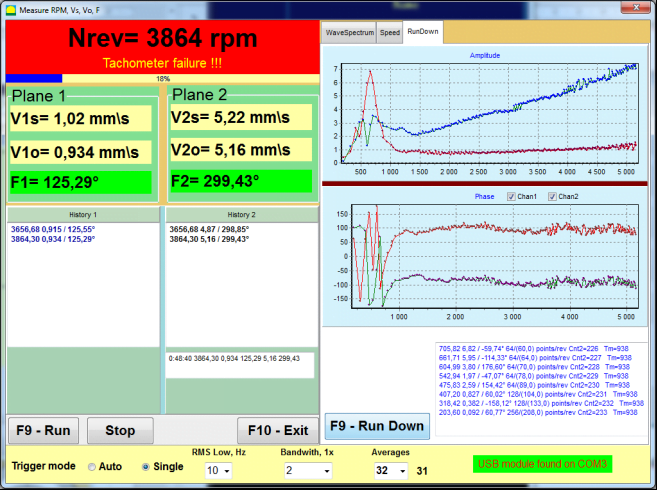
Fig. 7.8. Vibration meter mode. Rotation speed Unevenness, 1x vibration wave form.
Fig. 7.9. Vibration meter mode. Rundown (beta version, no warranty!).
7.3 Balancing procedure
Balancing is performed for mechanisms in good technical condition and correctly mounted. Otherwise, before the balancing the mechanism must be repaired, installed in proper bearings and fixed. Rotor should be cleaned of contaminants that can hinder from balancing procedure.
Before balancing measure vibration in Vibration meter mode (F5 button) to be sure that mainly vibration is 1x vibration.
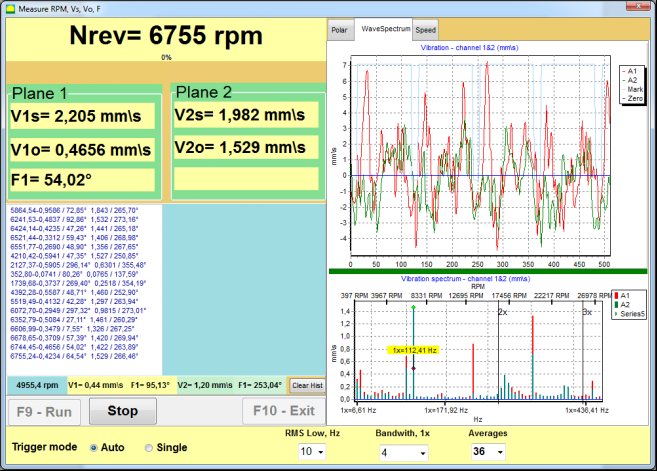
Fig. 7.10. Vibration meter mode. Checking overall (V1s,V2s) and 1x (V1o,V2o) vibration.
If the value of the overall vibration V1s (V2s) is approximately equal to the magnitude of the vibration at rotational frequency (1x vibration) V1o (V2o), it can be assumed that the main contribution to the vibration mechanism comes from an imbalance of the rotor. If the value of the overall vibration V1s (V2s) is much higher than the 1x vibration component V1o (V2o), it is recommended to check the condition of the mechanism – condition of bearings, its mount on the base, ensure no contact between the fixed parts and the rotor during rotation, etc.
You should also pay attention to the stability of the measured values in Vibration meter mode – the amplitude and phase of the vibration should not vary by more than 10-15% in the measurement process. Otherwise, it can be assumed that the mechanism is operating in the close-to-resonance region. In this case, change the speed of rotation of the rotor, and if this is not possible – change the conditions of installation of the machine on the foundation (for example, temporarily mount it on spring supports).
For rotor balancing the influence coefficient method of balancing (3-run method) should be used.
Trial runs are done to determine the effect of trial mass on vibration change, mass and place (angle) of installation of correction weights.
First determine the original vibration of a mechanism (first start without weight), and then set the trial weight to the first plane and made the second start. Then, remove the trial weight from the first plane, set in a second plane and made the second start.
The program then calculates and indicates on the screen the weight and location (angle) of installation of correction weights.
When balancing in a single plane (static), the second start is not required.
Trial weight is set to an arbitrary location on the rotor where it is convenient, and then the actual radius is entered in the setup program.
(Position Radius is used only for calculating the unbalance amount in grams * mm)
Important!
- Measurements should be carried out with the constant speed of rotation of the mechanism!
- Correction weights must be installed on the same radius as the trial weights!
Mass of the trial weight is selected so that after its installation phase (> 20-30°) and (20-30%) the amplitude of vibration change significantly. If changes are too small, the error increases greatly in subsequent calculations. Conveniently set trial mass at the same place (the same angle) as the phase mark.
Trial Weight Mass Calculation Formula
Mt = Mr × Ksupport × Kvibration / (Rt × (N/100)²)
Where:
- Mt - trial weight mass, g
- Mr - rotor mass, g
- Ksupport - support stiffness coefficient (1-5)
- Kvibration - vibration level coefficient (0.5-2.5)
- Rt - trial weight installation radius, cm
- N - rotor speed, rpm
Support stiffness coefficient (Ksupport):
- 1.0 - Very soft supports (rubber dampers)
- 2.0-3.0 - Medium stiffness (standard bearings)
- 4.0-5.0 - Rigid supports (massive foundation)
Vibration level coefficient (Kvibration):
- 0.5 - Low vibration (up to 5 mm/sec)
- 1.0 - Normal vibration (5-10 mm/sec)
- 1.5 - Elevated vibration (10-20 mm/sec)
- 2.0 - High vibration (20-40 mm/sec)
- 2.5 - Very high vibration (>40 mm/sec)
🔗 Use our online calculator:
Trial Weight Calculator →⚠️ Important!
After each test run trial mass are removed! Correction weights set at an angle calculated from the place of trial weight installation in the direction of rotation of the rotor!
Angle Calculation Explanation:
The correction weight installation angle is ALWAYS counted from the trial weight installation point in the direction of rotor rotation.
- Zero Point (0°): The exact location where you installed the trial weight becomes your reference point (0 degrees).
- Direction: Measure the angle in the same direction the rotor spins.
Example: If the rotor spins clockwise, measure the angle clockwise from the trial weight position. - Interpretation: If the program displays an angle of 120°, you must install the correction weight 120 degrees ahead of the trial weight position in the direction of rotation.
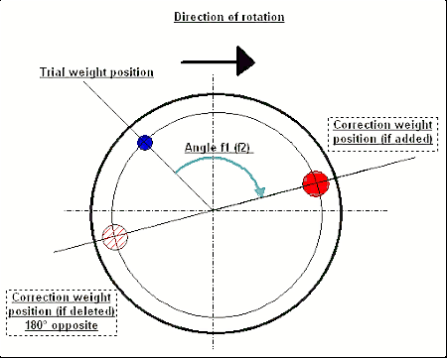
Fig. 7.11. Correction weight mounting.
Recommended!
Before performing dynamic balancing, it is recommended to make sure that static imbalance is not too high. For rotors with horizontal axis, the rotor can be manually rotated by an angle of 90 degrees from the current position. If the rotor is statically unbalanced, it will be rotated to a position of equilibrium. Once the rotor assumes the position of equilibrium, it is necessary to install the balancing weight at the top point approximately in the middle part of the rotor length. The weight should be chosen in such a way that the rotor is not moving in any position.
Such pre-balancing will reduce the amount of vibration at the first start of a strongly unbalanced rotor.
Sensor installation and mounting
Vibration sensor must be installed on the machine in the selected measuring point and connected to the input X1 of the USB interface unit.
There are two mounting configurations:
- Magnets
- Threaded studs M4
Optical tacho sensor should be connected to the input X3 of the USB interface unit. Furthermore, for use of this sensor a special reflecting mark should be applied on surface of a rotor.
📏 Optical Sensor Installation Requirements
- ✓Distance to rotor surface: 50-500 mm (depending on sensor model)
- ✓Reflective tape width: Minimum 1-1.5 cm (depends on speed and radius)
- ✓Orientation: Perpendicular to rotor surface
- ✓Mounting: Use magnetic stand or clamp for stable positioning
- ✓Avoid direct sunlight or bright artificial lighting on sensor/tape
💡 Tape width calculation: For optimal performance, calculate tape width using:
L ≥ (N × R)/30000 ≥ 1.0-1.5 cm
Where: L - tape width (cm), N - rotor speed (rpm), R - tape radius (cm)
Detailed requirements on site selection of the sensors and their attachment to the object when balancing are set out in Annex 1.
7.4 Single plane balancing
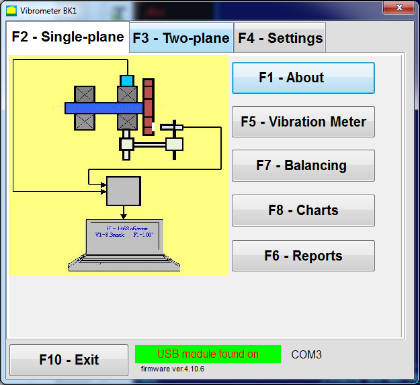
Fig. 7.12. "Single plane balancing"
Balancing Archive
To start working on the program in the "Single-Plane balancing" mode, click on the "F2-Single-plane" button (or press the F2 key on the computer keyboard).
Then click on the "F7 – Balancing" button, after which the Single Plane balancing archive window will appear, in which the balancing data will be saved (see Fig. 7.13).

Fig. 7.13 The window for selecting the balancing archive in single plane.
In this window, you need to enter data on the name of the rotor (Rotor name), place of rotor installation (Place), tolerances for vibration and residual imbalance (Tolerance), date of measurement. This data is stored in a database. Also, a folder Arc### is created in, where ### is the number of the archive in which the charts, a report file, etc. will be saved. After the balancing is completed, a report file will be generated that can be edited and printed in the built-in editor.
After entering the necessary data, you need to click the "F10-OK" button, after which the "Single-Plane balancing" window will open (see Fig. 7.13)
Balancing settings (1-plane)
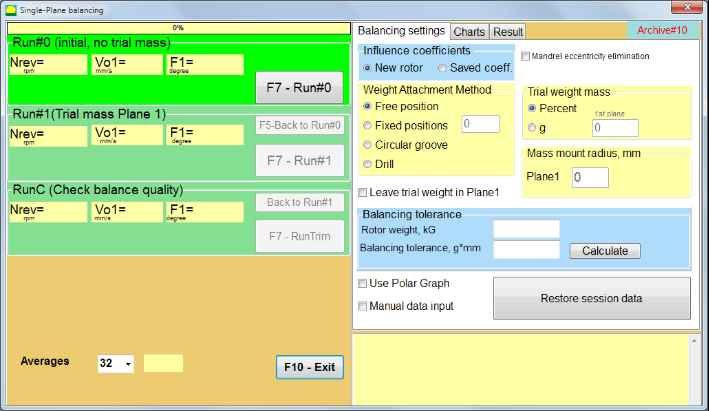
Fig. 7.14. Single plane. Balancing settings
In the left side of this window displays the data of vibration measurements and the measurement control buttons "Run # 0", "Run # 1", "RunTrim".
In the right side of this window there are three tabs:
- Balancing settings
- Charts
- Result
The "Balancing settings" tab is used to enter the balancing settings:
- "Influence coefficient" -
- "New Rotor" - selection of the balancing of the new rotor, for which there are no stored balancing coefficients and two runs are required to determine the mass and installation angle of the correction weight.
- "Saved coeff." - selection of the rotor re-balancing, for which there are saved balancing coefficients and only one run is required for determining the weight and installation angle of the corrective weight.
- "Trial weight mass" -
- "Percent" - corrective weight is calculated as a percentage of the trial weight.
- "Gram" - the known mass of the trial weight is entered and the mass of the corrective weight is calculated in grams or in oz for Imperial system.
⚠️ Attention! If it is necessary to use the "Saved coeff." Mode for further work during initial balancing, the trial weight mass must be entered in grams or oz, not in %. Scales are included in the delivery package.
- "Weight Attachment Method"
- "Free position" - weights can be installed in an arbitrary angular positions on the circumference of the rotor.
- "Fixed position" - weight can be installed in fixed angular positions on the rotor, for example, on blades or holes (for example 12 holes – 30 degrees), etc. The number of fixed positions must be entered in the appropriate field. After balancing, the program will automatically split the weight into two parts and indicate the number of positions on which it is necessary to establish the masses obtained.
- "Circular groove" – used for grinding wheel balancing In this case 3 counterweights are used to eliminate unbalance
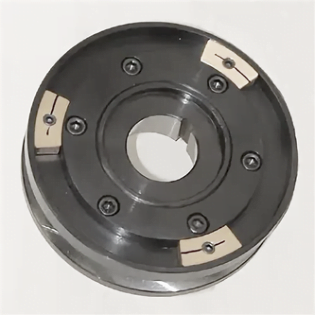
Fig. 7.17 Grinding wheel balancing with 3 counterweights
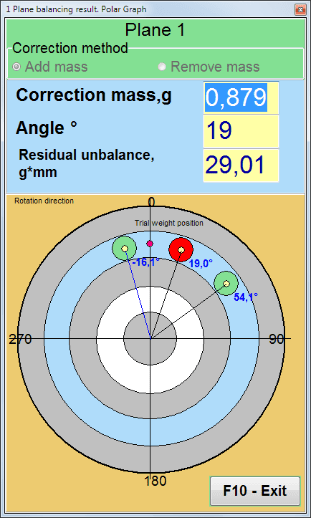
Fig. 7.18 Grinding wheel balancing. Polar graph.

Fig. 7.15. Result tab. Fixed position of correction weight mounting.
Z1 and Z2 – positions of corrective weights installed, calculated from Z1 position according to rotation direction. Z1 is the position where the trial weight was installed.
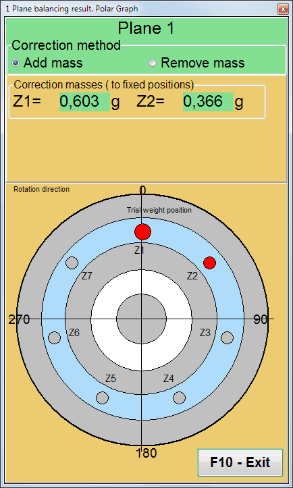
Fig. 7.16 Fixed positions. Polar diagram.
- "Mass mount radius, mm" - "Plane1" - The radius of the trial weight in the 1 plane. It is required to calculate the magnitude of the initial and residual imbalance to determine compliance with the tolerance for residual imbalance after balancing.
- "Leave trial weight in Plane1." Usually the trial weight is removed during the balancing process. But in some cases it is impossible to remove it, then you need to set a check mark in this to account for the trial weight mass in the calculations.
- "Manual data input" - used to manually enter the vibration value and phase into the appropriate fields on the left side of the window and calculate the mass and installation angle of the correction weight when switching to the "Results" tab
- Button "Restore session data". During balancing, the measured data is saved in the session1.ini file. If the measurement process was interrupted due to computer freezing or for other reasons, then by clicking this button you can restore the measurement data and continue balancing from the moment of interruption.
- Mandrel eccentricity elimination (Index balancing) Balancing with additional start to eliminate the influence of the eccentricity of the mandrel (balancing arbor). Mount the rotor alternately at 0° and 180° relative to the. Measure the unbalances in both positions.
- Balancing tolerance Entering or calculating residual imbalance tolerances in g x mm (G-classes)
- Use Polar Graph Use polar graph to display balancing results
1-plane Balancing. New rotor
As noted above, "New Rotor" balancing requires two test runs and at least one trim run of the balancing machine.
Run#0 (Initial run)
After installing the sensors on the balancing rotor and entering the settings parameters, it is necessary to turn on the rotor rotation and, when it reaches working speed, press the "Run#0" button to start measurements. The "Charts" tab will open in the right panel, where the wave form and spectrum of the vibration will be shown. In the bottom part of the tab, a history file is kept, in which the results of all starts with a time reference are saved. On disk, this file is saved in the archive folder by the name memo.txt
Attention!
Before starting the measurement, it is necessary to turn on the rotation of the rotor of the balancing machine (Run#0) and make sure that the rotor speed is stable.
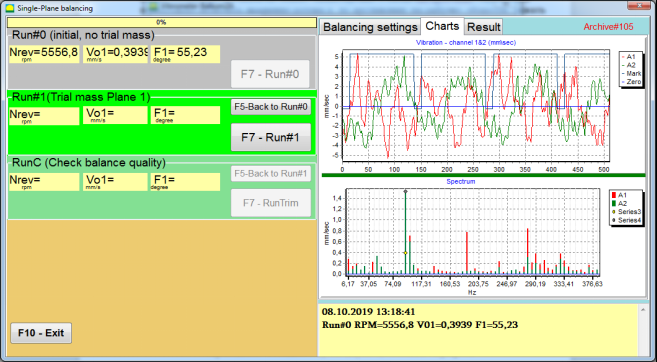
Fig. 7.19. Balancing in one plane. Initial run (Run#0). Charts Tab
After measurement process finished, in the Run#0 section in the left panel the results of measuring appears - the rotor speed (RPM), RMS (Vo1) and phase (F1) of 1x vibration.
The "F5-Back to Run#0" button (or the F5 function key) is used to return to the Run#0 section and, if necessary, to repeat measure the vibration parameters.
Run#1 (Trial mass Plane 1)
Before starting the measurement of vibration parameters in the section "Run#1 (Trial mass Plane 1), a trial weight should be installed according "Trial weight mass" field.
The goal of installing a trial weight is to evaluate how the vibration of the rotor changes when a known weight is installed at a known place (angle). Trial weight must changes the vibration amplitude by either 30% lower or higher of initial amplitude or change phase by 30 degrees or more of initial phase.
If it is necessary to use the "Saved coeff." balancing for further work, the place (angle) of installation of the trial weight must be the same as the place (angle) of the reflective mark.
Turn on the rotation of the rotor of the balancing machine again and make sure that it rotation frequency is stable. Then click on the "F7-Run#1" button (or press the F7 key on the computer keyboard).
After the measurement in the corresponding windows of the "Run#1 (Trial mass Plane 1)" section, the results of measuring the rotor speed (RPM), as well as the value of the RMS component (Vо1) and phase (F1) of 1x vibration appearing.
At the same time, the "Result" tab opens on the right side of the window.
This tab displays the results of calculating the mass and angle of corrective weight, which must be installed on the rotor to compensate imbalance.
Moreover, in the case of using the polar coordinate system, the display shows the mass value (M1) and the installation angle (f1) of the correction weight.
In the case of "Fixed positions" the numbers of the positions (Zi, Zj) and trial weight splitted mass will be shown.
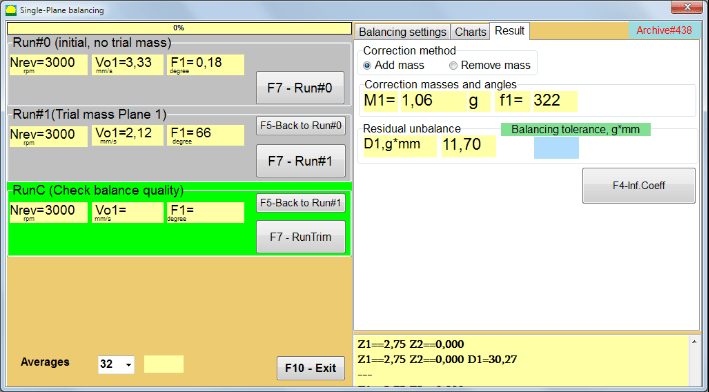
Fig. 7.20. Balancing in one plane. Run#1 and balancing result.
If Polar graph is checked polar diagram will be shown.
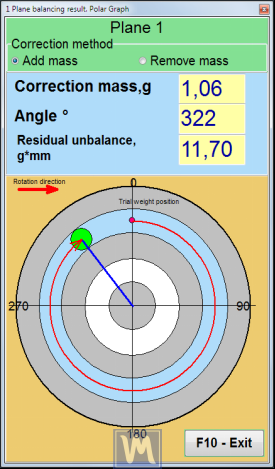
Fig. 7.21. The result of balancing. Polar graph.
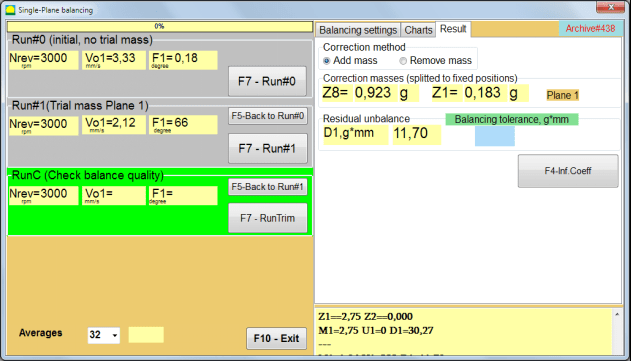
Fig. 7.22. The result of balancing. Weight splitted (fixed positions)
Also if "Polar graph" was checked, Polar graph will be shown.
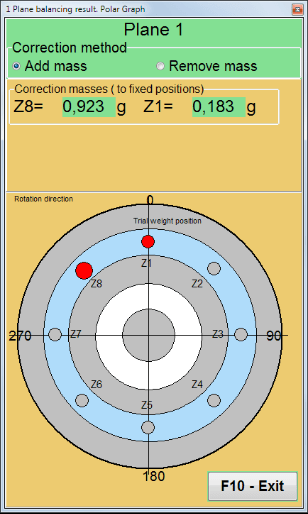
Fig. 7.23. Weight splitted on fixed positions. Polar graph
⚠️ Attention!
- After completing the measurement process at the second run ("Run#1 (Trial mass Plane 1)") of the balancing machine, it is necessary to stop the rotation and remove installed trial weight. Then install (or remove) the corrective weight on the rotor according result tab data.
If the trial weight was not removed, you need to switch to the "Balancing settings" tab and turn on the checkbox in "Leave trial weight in Plane1". Then switch back to the "Result" tab. The weight and installation angle of the correction weight are recalculated automatically.
- The angular position of the corrective weight is performed from the place of installation of the trial weight. The direction of reference of the angle coincides with the direction of rotation of the rotor.
- In the case of "Fixed position" - the 1st position (Z1), coincides with the place of installation of the trial weight. The counting direction of the position number is in the direction of rotation of the rotor.
- By default the corrective weight will be added to the rotor. This is indicated by the label set in the "Add" field. If removing the weight (for example, by drilling), you must set a mark in the "Delete" field, after which the angular position of the correction weight will automatically change by 180º.
After installing the correction weight on the balancing rotor in the operating window, it is necessary to carry out a RunC (trim) and evaluate the effectiveness of the performed balancing.
RunC (Check balance quality)
⚠️ Attention! Before starting the measurement on the RunC, it is necessary to turn on the rotation of the rotor of the machine and make sure that it has entered the operating mode (stable rotation frequency).
To perform vibration measurement in the "RunC (Check balance quality)" section, click on the "F7 – RunTrim" button (or press the F7 key on the keyboard).
Upon successful completion of the measurement process, in the "RunC (Check balance quality)" section in the left panel, the results of measuring the rotor speed (RPM) appear, as well as the value of the RMS component (Vo1) and phase (F1) of 1x vibration.
In the "Result" tab, the results of calculating the mass and installation angle of the additional corrective weight are displayed.
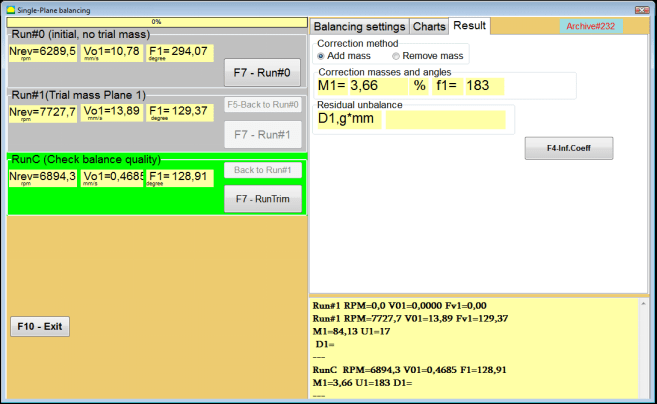
Fig. 7.24. Balancing in one plane. Performing a RunTrim. Result Tab
This weight can be added to the correction weight that is already mounted on the rotor to compensate for the residual imbalance. In addition, the residual rotor unbalance achieved after balancing is displayed in the lower part of this window.
In the case when the amount of residual vibration and / or residual unbalance of the balanced rotor meets the tolerance requirements established in the technical documentation, the balancing process can be completed.
Otherwise, the balancing process may continue. This allows the method of successive approximations to correct possible errors that may occur during the installation (removal) of the corrective weight on a balanced rotor.
When continuing the balancing process on the balancing rotor, it is necessary to install (remove) additional corrective mass, the parameters of which are indicated in the section "Correction masses and angles".
Influence coefficients (1-plane)
The "F4-Inf.Coeff" button in the "Result" tab is used to view and store in the computer memory the coefficients of rotor balancing (Influence coefficients) calculated from the results of calibration runs.
When it is pressed, the "Influence coefficients (single plane)" window appears on the computer display, in which balancing coefficients calculated from the results of calibration (test) runs are displayed. If during the subsequent balancing of this machine it is supposed to use the "Saved coeff." Mode, these coefficients must be stored in the computer memory.
To do this, click the "F9 - Save" button and go to the second page of the "Influence coeff. archive. Single plane."

Fig. 7.25. Balancing coefficients in the 1st plane
Then you need to enter the name of this machine in the "Rotor" column and click "F2-Save" button to save the specified data on the computer.
Then you can return to the previous window by pressing the "F10-Exit" button (or the F10 function key on the computer keyboard).
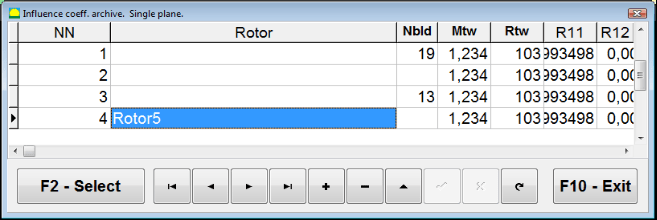
Fig. 7.26. "Influence coeff. archive. Single plane."
Balancing report
After balancing all data saved and Balancing report created. You can view and edit report in built-in editor. In the window "Balancing archive in one plane" (Fig. 7.9) press button "F9 -Report" to access to the balancing report editor.
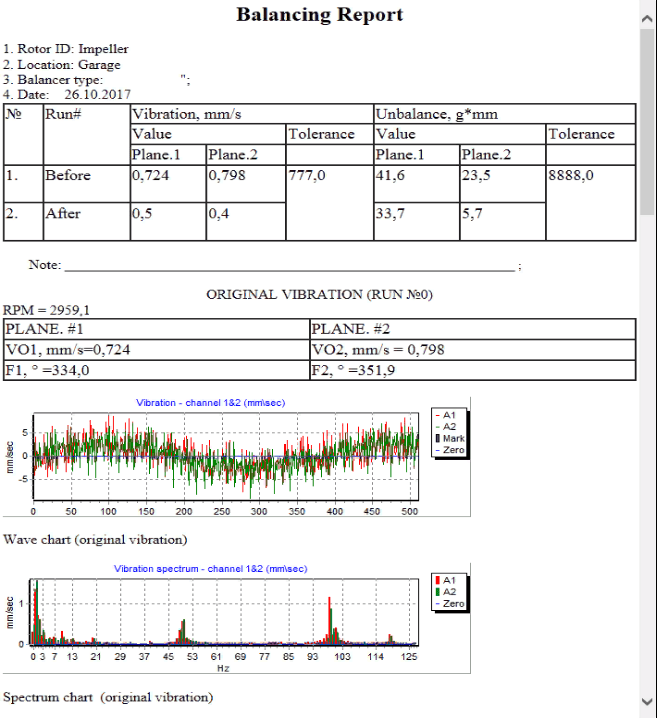
Fig. 7.27. Balancing report.
Saved coeff. balancing procedure with saved influence coefficients in 1 plane
Setting up the measuring system (input of initial data)
Saved coeff. balancing can be performed on a machine for which balancing coefficients have already been determined and entered into the computer memory.
⚠️ Attention! When balancing with saved coefficients, the vibration sensor and the phase angle sensor must be installed in the same way as during the initial balancing.
Input of the initial data for Saved coeff. balancing (as in the case of primary("New rotor") balancing) begins in the "Single plane balancing. Balancing settings.".
In this case, in the "Influence coefficients" section, select the "Saved coeff" item. In this case, the second page of the "Influence coeff. archive. Single plane.", which stores an archive of the saved balancing coefficients.
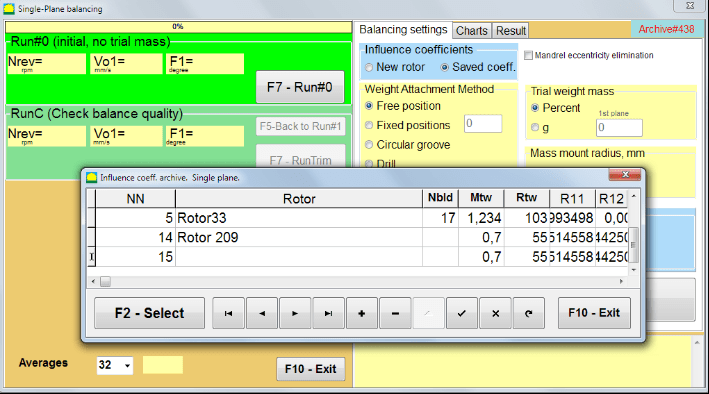
Fig. 7.28. Balancing with saved influence coefficients in 1 plane
Moving through the table of this archive using the "►" or "◄" control buttons, you can select the desired record with balancing coefficients of the machine of interest to us. Then, to use this data in current measurements, press the "F2 – Select" button.
After that, the contents of all other windows of the "Single plane balancing. Balancing settings." are filled in automatically.
After completing the input of the initial data, you can begin to measure.
Measurements during balancing with saved influence coefficients
Balancing with saved influence coefficients requires only one initial run and at least one test run of the balancing machine.
⚠️ Attention! Before starting the measurement, it is necessary to turn on the rotation of the rotor and make sure that rotating frequency is stable.
To carry out the measurement of vibration parameters in the "Run#0 (Initial, no trial mass)" section, press "F7 – Run#0" (or press the F7 key on the computer keyboard).
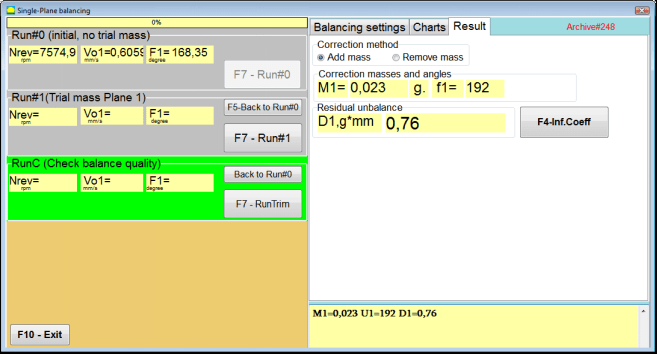
Fig. 7.29. Balancing with saved influence coefficients in one plane. Results after one run.
In the corresponding fields of "Run#0" section, the results of measuring the rotor speed (RPM), the value of the RMS component (Vо1) and phase (F1) of 1x vibration appear.
At the same time, the "Result" tab displays the results of calculating the mass and angle of the corrective weight, which must be installed on the rotor to compensate imbalance.
Moreover, in the case of using a polar coordinate system, the display shows the mass values and the installation angles of the correction weights.
In the case of splitting of the corrective weight on the fixed positions, the numbers of the positions of the balancing rotor and the mass of weight that need to be installed on them are displayed.
Further, the balancing process is carried out in accordance with the recommendations set out in section 7.4.2. for primary balancing.
Mandrel eccentricity elimination (Index balancing)
If during balancing the rotor is installed in a cylindrical mandrel, then the eccentricity of the mandrel may introduce an additional error. To eliminate this error, the rotor should be deployed in the mandrel 180 degrees and carry out an additional start. This is called index balancing.
To carry out index balancing, a special option is provided in the Balanset-1A program. When checked Mandrel eccentricity elimination an additional RunEcc section appears in the balancing window.

Fig. 7.30. The working window for Index balancing.
After running Run # 1 (Trial mass Plane 1), a window will appear
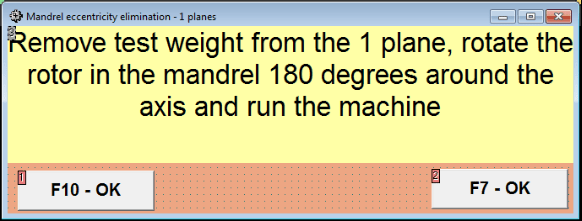
Fig. 7.31 Index balancing attention window.
After installing the rotor with a 180° turn, Run Ecc must be completed. The program will automatically calculate the true rotor imbalance without affecting the mandrel eccentricity.
7.5 Two plane balancing
Before starting work in the Two plane balancing mode, it is necessary to install vibration sensors on the machine body at the selected measurement points and connect them to the inputs X1 and X2 of the measuring unit, respectively.
An optical phase angle sensor must be connected to input X3 of the measuring unit. In addition, to use this sensor, a reflective tape must be glued onto the accessible rotor surface of the balancing machine.
Detailed requirements for choosing the installation location of sensors and their mounting at the facility during balancing are set out in Appendix 1.
The work on the program in the "Two plane balancing" mode starts from the Main window of the programs.
Click on the "F3-Two plane" button (or press the F3 key on the computer keyboard).
Further, click on the "F7 – Balancing" button, after which a working window will appear on the computer display (see Fig. 7.13), selection of the archive for saving data when balancing in two planes.
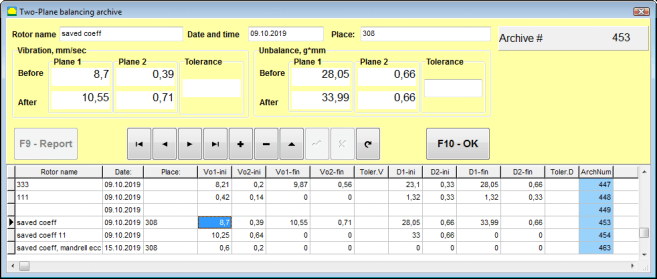
Fig. 7.32 Two plane balancing archive window.
In this window you need to enter the data of the balanced rotor. After pressing the "F10-OK" button, a balancing window will appear.
Balancing settings (2-plane)
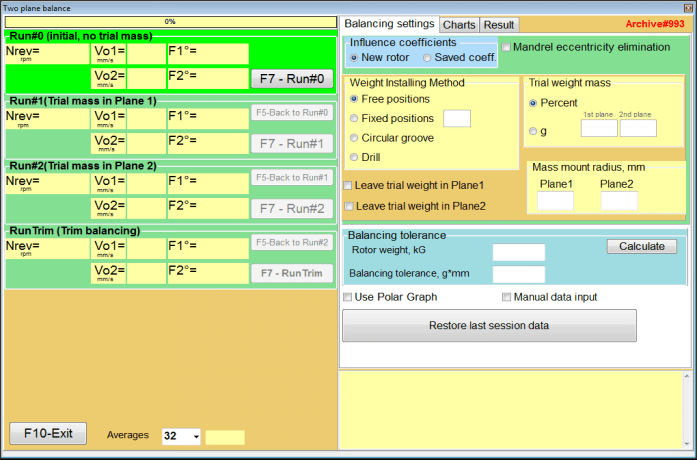
Fig. 7.33. Balancing in two planes window.
On the right side of the window is the "Balancing settings" tab for entering settings before balancing.
- Influence coefficients - Balancing a new rotor or balancing using stored influence coefficients (balancing coefficients)
- Mandrel eccentricity elimination - Balancing with additional start to eliminate the influence of the eccentricity of the mandrel
- Weight Attachment Method - Installation of corrective weights in an arbitrary place on the circumference of the rotor or in a fixed position. Calculations for drilling when removing the mass.
- "Free position" - weights can be installed in an arbitrary angular positions on the circumference of the rotor.
- "Fixed position" - weight can be installed in fixed angular positions on the rotor, for example, on blades or holes (for example 12 holes – 30 degrees), etc. The number of fixed positions must be entered in the appropriate field. After balancing, the program will automatically split the weight into two parts and indicate the number of positions on which it is necessary to establish the masses obtained.
- Trial weight mass - Trial weight
- Leave trial weight in Plane1 / Plane2 - Remove or leave trial weight when balancing.
- Mass mount radius, mm - Radius of mounting trial and corrective weights
- Balancing tolerance - Entering or calculating residual imbalance tolerances in g-mm
- Use Polar Graph - Use polar graph to display balancing results
- Manual data input - Manual data entry for calculating balancing weights
- Restore last session data - Recovery of the measurement data of the last session in the event of failure to continue balancing.
2 planes balancing. New rotor
Setting up the measuring system (input of initial data)
Input of the initial data for the New rotor balancing in the "Two plane balancing. Settings".
In this case, in the "Influence coefficients" section, select the "New rotor" item.
Further, in the section "Trial weight mass", you must select the unit of measurement of the mass of the trial weight - "Gram" or "Percent".
When choosing the unit of measure "Percent", all further calculations of the mass of the corrective weight will be performed as a percentage in relation to the mass of the trial weight.
When choosing the "Gram" unit of measurement, all further calculations of the mass of the corrective weight will be performed in grams. Then enter in the windows located to the right of the inscription "Gram" the mass of trial weights that will be installed on the rotor.
⚠️ Attention! If it is necessary to use the "Saved coeff." Mode for further work during initial balancing, the mass of trial weights must be entered in grams.
Then select "Weight Attachment Method" - "Circum" or "Fixed position".
If you select "Fixed position", you must enter the number of positions.
Calculation of tolerance for residual imbalance (Balancing tolerance)
The tolerance for residual imbalance (Balancing tolerance) can be calculated in accordance with the procedure described in ISO 1940 Vibration. Balance quality requirements for rotors in a constant (rigid) state. Part 1. Specification and verification of balance tolerances.

Fig. 7.34. Balancing tolerance calculation window
Initial run (Run#0)
When balancing in two planes in the "New rotor" mode, balancing requires three calibration runs and at least one test run of the balancing machine.
The vibration measurement at the first start of the machine is performed in the "Two plane balance" working window in the "Run#0" section.
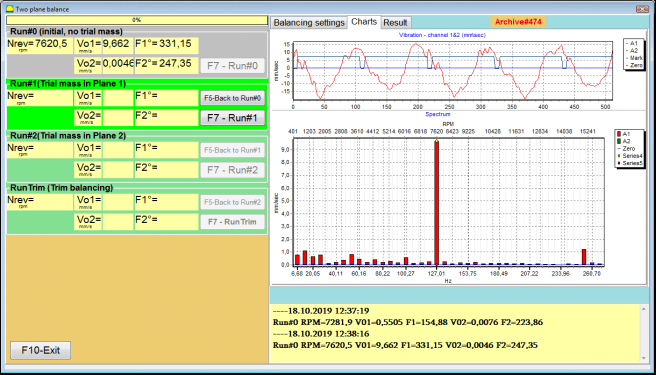
Fig. 7.35. Measurement results at balancing in two planes after the initial run.
⚠️ Attention! Before starting the measurement, it is necessary to turn on the rotation of the rotor of the balancing machine (first run) and make sure that it has entered the operating mode with a stable speed.
To measure vibration parameters in the Run#0 section, click on the "F7 – Run#0" button (or press the F7 key on a computer keyboard)
The results of measuring the rotor speed (RPM), the value RMS (VО1, VО2) and phases (F1, F2) of 1x vibration appear in the corresponding windows of the Run#0 section.
Run#1.Trial mass in Plane1
Before starting to measure vibration parameters in the "Run#1.Trial mass in Plane1" section, you should stop the rotation of the rotor of the balancing machine and install a trial weight on it, the mass selected in the "Trial weight mass" section.
⚠️ Attention!
- The question of choosing the mass of trial weights and their installation places on the rotor of a balancing machine is discussed in detail in Appendix 1.
- If it is necessary to use the Saved coeff. Mode in future work, the place for installing the trial weight must necessarily coincide with the place for installing the mark used to read the phase angle.
After this, it is necessary to turn on the rotation of the rotor of the balancing machine again and make sure that it has entered the operating mode.
To measure vibration parameters in the "Run # 1.Trial mass in Plane1" section, click on the "F7 – Run#1" button (or press the F7 key on the computer keyboard).
Upon successful completion of the measurement process, you are returned to the tab of measurement results.
In this case, in the corresponding windows of the "Run#1. Trial mass in Plane1" section, the results of measuring the rotor speed (RPM), as well as the value of the components of the RMS (Vо1, Vо2) and phases (F1, F2) of 1x vibration.
"Run # 2.Trial mass in Plane2"
Before starting to measure vibration parameters in the section "Run # 2.Trial mass in Plane2", you must perform the following steps:
- stop the rotation of the rotor of the balancing machine;
- remove the trial weight installed in plane 1;
- install a trial weight in plane 2, the mass selected in the section "Trial weight mass".
After this, turn on the rotation of the rotor of the balancing machine and make sure that it has entered the operating speed.
To begin the measurement of vibration in the "Run # 2.Trial mass in Plane2" section, click on the "F7 – Run # 2" button (or press the F7 key on the computer keyboard). Then the "Result" tab opens.
In the case of using the Weight Attachment Method" - "Free positions, the display shows the mass values (M1, M2) and installation angles (f1, f2) of the corrective weights.
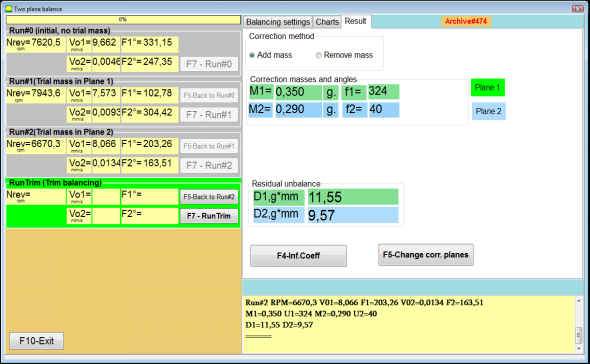
Fig. 7.36. Results of calculation of corrective weights – free position
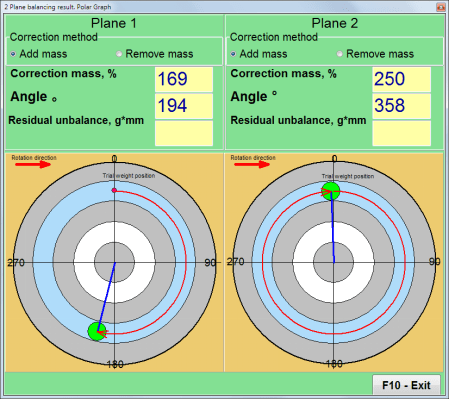
Fig. 7.37. Results of calculation of corrective weights – free position. Polar diagram
In the case of using the Weight Attachment Method" – "Fixed positions

Fig. 7.38. Results of calculation of corrective weights – fixed position.
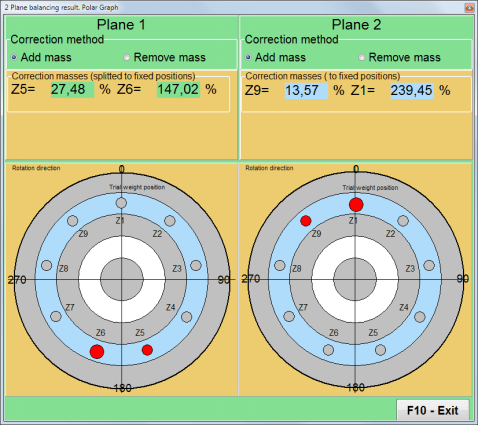
Fig. 7.39. Results of calculation of corrective weights – fixed position. Polar diagram.
In the case of using the Weight Attachment Method" – "Circular groove"
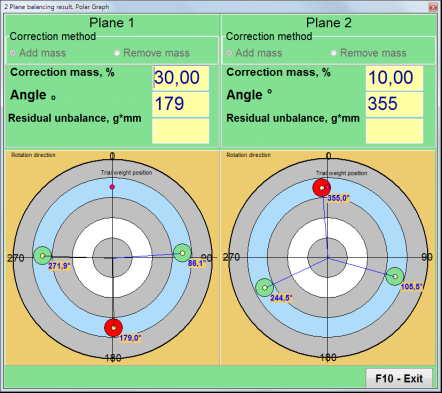
Fig. 7.40. Results of calculation of corrective weights – Circular groove.
⚠️ Attention!
- After completing the measurement process on the RUN#2 of the balancing machine, stop the rotation of the rotor and remove the trial weight previously installed. Then you can to install (or remove) corrective weights.
- The angular position of the corrective weights in the polar coordinate system is counted from the place of installation of the trial weight in the direction of rotation of the rotor.
- In the case of "Fixed position" - the 1st position (Z1), coincides with the place of installation of the trial weight. The counting direction of the position number is in the direction of rotation of the rotor.
- By default the corrective weight will be added to the rotor. This is indicated by the label set in the "Add" field. If removing the weight (for example, by drilling), you must set a mark in the "Delete" field, after which the angular position of the correction weight will automatically change by 180º.
RunC (Trim run)
After installing the correction weight on the balancing rotor it is necessary to carry out a RunC (trim) and evaluate the effectiveness of the performed balancing.
⚠️ Attention! Before starting the measurement at the test run, it is necessary to turn on the rotation of the rotor of the machine and make sure that it has entered the operating speed.
To measure vibration parameters in the RunTrim (Check balance quality) section, click on the "F7 – RunTrim" button (or press the F7 key on the computer keyboard).
The results of measuring the rotor rotation frequency (RPM), as well as the value of the RMS component (Vо1) and phase (F1) of 1x vibration will be shown.
The "Result" tab appears on right side of the working window with the table of measurement results, which displays the results of calculating the parameters of additional corrective weights.
These weights can be added to corrective weights that are already installed on the rotor to compensate for residual imbalance.
In addition, the residual rotor unbalance achieved after balancing is displayed in the lower part of this window.
In the case when the values of the residual vibration and / or residual unbalance of the balanced rotor satisfy the tolerance requirements established in the technical documentation, the balancing process can be completed.
Otherwise, the balancing process may continue. This allows the method of successive approximations to correct possible errors that may occur during the installation (removal) of the corrective weight on a balanced rotor.
When continuing the balancing process on the balancing rotor, it is necessary to install (remove) additional corrective mass, the parameters of which are indicated in the "Result" window.
In the "Result" window there are two control buttons can be used - "F4-Inf.Coeff", "F5 – Change correction planes".
Influence coefficients (2 planes)
The "F4-Inf.Coeff" button (or the F4 function key on the computer keyboard) is used to view and save rotor balancing coefficients in the computer memory, calculated from the results of two calibration starts.
When it is pressed, the "Influence coefficients (two planes)" working window appears on the computer display, in which balancing coefficients calculated based on the results of the first three calibration starts are displayed.

Fig. 7.41. Working window with balancing coefficients in 2 planes.
In the future, when balancing of such type of the machine it is supposed, require to use the "Saved coeff." mode and balancing coefficients stored in the computer memory.
To save coefficients, click the "F9 – Save" button and go to the "Influence coefficients archive (2planes)" windows (see Fig. 7.42)
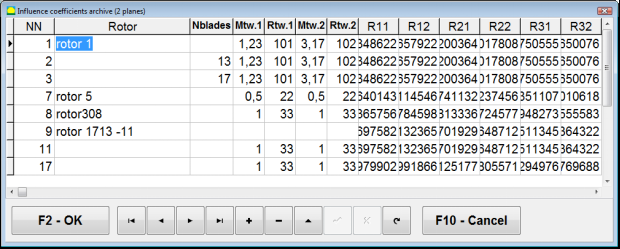
Fig. 7.42. The second page of the working window with balancing coefficients in 2 planes.
Change correction planes
The "F5 – Change correction planes" button is used when require change the position of the correction planes, when it is necessary to recalculate the masses and installation angles corrective weights.
This mode is primarily useful when balancing rotors of complex shape (for example, crankshafts).
When this button is pressed, the working window "Recalculation of correction weights mass and angle to other correction planes" is displayed on the computer display.
In this working window, you should select one of the 4 possible options by clicking corresponding picture.
The original correction planes (Н1 and Н2) are marked in green, and new (K1 and K2), for which it recounts, in red.
Then, in the "Calculation data" section, enter the requested data, including:
- the distance between the corresponding correction planes (a, b, c);
- new values of the radii of the installation of corrective weights on the rotor (R1 ', R2').
After entering the data, you must press the button "F9-calculate"
The calculation results (masses M1, M2 and installation angles of corrective weights f1, f2) are displayed in the corresponding section of this working window.
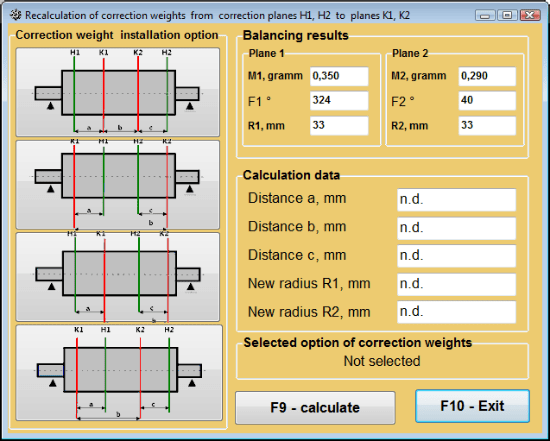
Fig. 7.43 Change correction planes. Recalculation of correction mass and angle to other correction planes.
Saved coeff. balancing in 2 planes
Saved coeff. balancing can be performed on a machine for which balancing coefficients have already been determined and saved in the computer memory.
⚠️ Attention! When re-balancing, the vibration sensors and the phase angle sensor must be installed in the same way as during the initial balancing.
Input of initial data for re-balancing begins in the "Two plane balance. Balancing settings".
In this case, in the "Influence coefficients" section, select the "Saved coeff." Item. In this case, the window "Influence coefficients archive (2planes)" will appear, in which the archive of the previously determined balancing coefficients is stored.
Moving through the table of this archive using the "►" or "◄" control buttons, you can select the desired record with balancing coefficients of the machine of interest to us. Then, to use this data in current measurements, press the "F2 – OK" button and return to the previous working window.
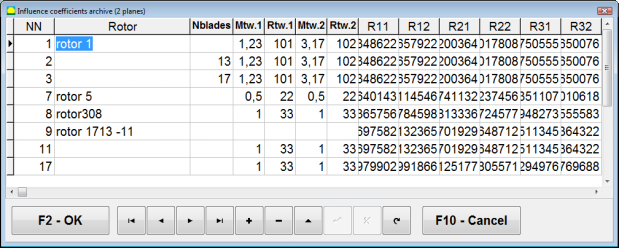
Fig. 7.44. The second page of the working window with balancing coefficients in 2 planes.
After that, the contents of all other windows of the "Balancing in 2 pl. Source data" is filled in automatically.
Saved coeff. Balancing
"Saved coeff." balancing requires only one tuning start and at least one test start of the balancing machine.
Vibration measurement at the tuning start (Run # 0) of the machine is performed in the "Balancing in 2 planes" working window with a table of balancing results in the Run # 0 section.
⚠️ Attention! Before starting the measurement, it is necessary to turn on the rotation of the rotor of the balancing machine and make sure that it has entered the operating mode with a stable speed.
To measure vibration parameters in the Run # 0 section, click the "F7 – Run#0" button (or press the F7 key on the computer keyboard).
The results of measuring the rotor speed (RPM), as well as the value of the components of the RMS (VО1, VО2) and phases (F1, F2) of the 1x vibration appear in the corresponding fields of the Run # 0 section.
At the same time, the "Result" tab opens, which displays the results of calculating the parameters of corrective weights that must be installed on the rotor to compensate for its imbalance.
Moreover, in the case of using the polar coordinate system, the display shows the mass values and installation angles of corrective weights.
In the case of decomposition of corrective weights on the blades, the numbers of the blades of the balancing rotor and the mass of weight that need to be installed on them are displayed.
Further, the balancing process is carried out in accordance with the recommendations set out in section 7.6.1.2. for primary balancing.
⚠️ Attention!
- After completion of the measurement process after the second start of the balanced machine stop the rotation of its rotor and remove the previously set trial weight. Only then you can begin to install (or remove) correction weight on the rotor.
- Counting the angular position of the place of adding (or removing) of the correction weight from the rotor is carried out on the installation site of trial weight in the polar coordinate system. Counting direction coincides with the direction of the angle of rotor rotation.
- In case of balancing on the blades – the balanced rotor blade, designated as position 1, coincides with the place of the trial weight installation. Reference number direction of the blade shown on the computer display is performed in the direction of the rotor rotation.
- In this version of the program it is accepted by default that correction weight will be added on the rotor. The tag established in the field "Addition" testifies to it. In case of correction of imbalance by removal of a weight (for example by drilling) it is necessary to establish tag in the field "Removal" then the angular position of the correction weight will change automatically on 180º.
Mandrel eccentricity elimination (Index balancing) - Two Planes
If during balancing the rotor is installed in a cylindrical mandrel, then the eccentricity of the mandrel may introduce an additional error. To eliminate this error, the rotor should be deployed in the mandrel 180 degrees and carry out an additional start. This is called index balancing.
To carry out index balancing, a special option is provided in the Balanset-1A program. When checked Mandrel eccentricity elimination an additional RunEcc section appears in the balancing window.
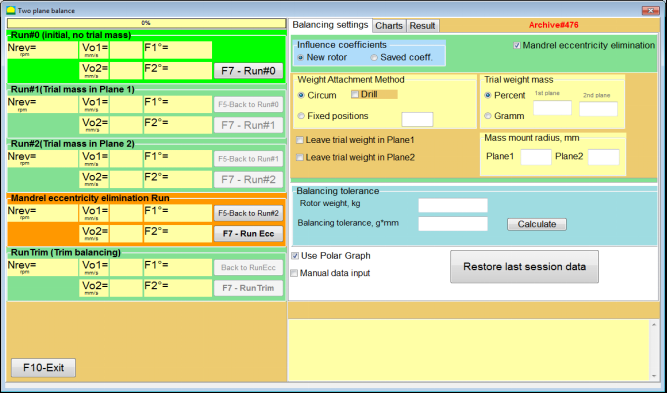
Fig. 7.45. The working window for Index balancing.
After running Run # 2 (Trial mass Plane 2), a window will appear
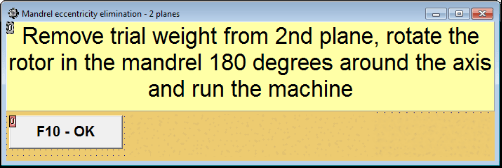
Fig. 7.46. Attention windows
After installing the rotor with a 180° turn, Run Ecc must be completed. The program will automatically calculate the true rotor imbalance without affecting the mandrel eccentricity.
7.6 Charts mode
Working in the "Charts" mode begins from the Initial window (see. Fig. 7.1) by pressing "F8 – Charts". Then opens a window "Measurement of vibration on two channels. Charts" (see. Fig. 7.19).

Fig. 7.47. Operating window "Measurement of vibration on two channels. Charts".
While working in this mode it is possible to plot four versions of vibration chart.
The first version allows to get a timeline function of the overall vibration (of vibration velocity) on the first and second measuring channels.
The second version allows you to get graphs of vibration (of vibration velocity), which occurs on rotation frequency and its higher harmonical components.
These graphs are obtained as a result of the synchronous filtering of the overall vibration time function.
The third version provides vibration charts with the results of the harmonical analysis.
The fourth version allows to get a vibration chart with the results of the spectrum analysis.
Charts of overall vibration
To plot a overall vibration chart in the operating window "Measurement of vibration on two channels. Charts" it is necessary to select the operating mode "overall vibration" by clicking the appropriate button. Then set the measurement of vibration in the box "Duration, in seconds," by clicking on the button «▼» and select from the drop-down list the desired duration of the measurement process, which may be equal to 1, 5, 10, 15 or 20 seconds;
Upon readiness press (click) the "F9-Measure" button then the vibration measurement process begins simultaneously on two channels.
After completion of the measurement process in the operating window appear charts of time function of the overall vibration of the first (red) and the second (green) channels (see. Fig. 7.47).
On these charts time is plotted on X-axis and the amplitude of the vibration velocity (mm/sec) is plotted on Y-axis.
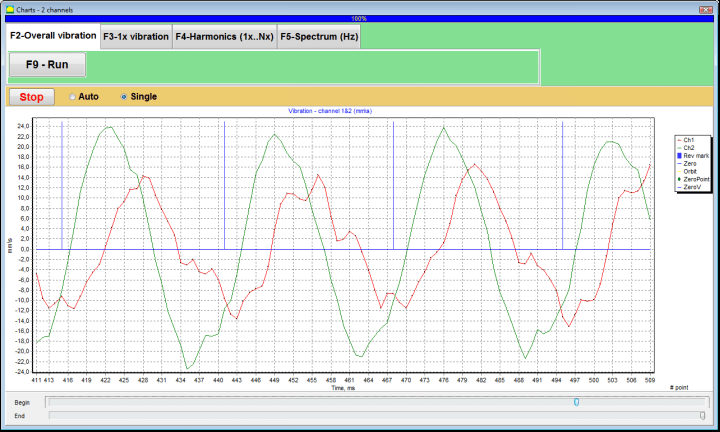
Fig. 7.48. Operating window for the output of the time function of the overall vibration charts
There are also marks (blue-colored) in these graphs connecting charts of overall vibration with the rotation frequency of the rotor. In addition, each mark indicates beginning (end) of the next revolution of the rotor.
In need of the scale change of the chart on X-axis the slider, pointed by an arrow on fig. 7.20, can be used.
Charts of 1x vibration
To plot a 1x vibration chart in the operating window "Measurement of vibration on two channels. Charts" it is necessary to select the operating mode "1x vibration" by clicking the appropriate button.
Then appears operating window "1x vibration".
Press (click) the "F9-Measure" button then the vibration measurement process begins simultaneously on two channels.
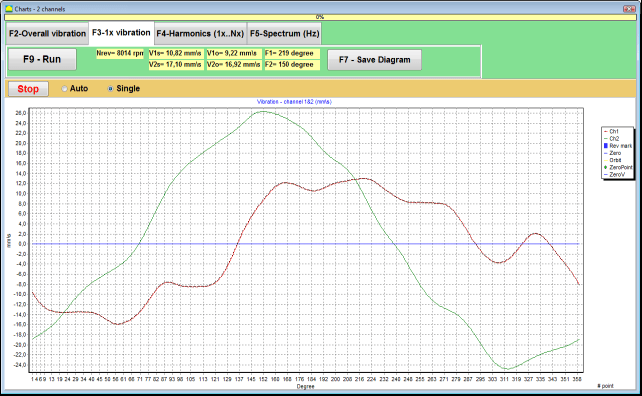
Fig. 7.49. Operating window for the output of the 1x vibration charts.
After completion of the measurement process and mathematical calculation of results (synchronous filtering of the time function of the overall vibration) on display in the main window on a period equal to one revolution of the rotor appear charts of the 1x vibration on two channels.
In this case, a chart for the first channel is depicted in red and for the second channel in green. On these charts angle of the rotor revolution is plotted (from mark to mark) on X-axis and the amplitude of the vibration velocity (mm/sec) is plotted on Y-axis.
In addition, in the upper part of the working window (to the right of the button "F9 – Measure") numerical values of vibration measurements of both channels, similar to those we get in the "Vibration meter" mode, are displayed.
In particular: RMS value of the overall vibration (V1s, V2s), the magnitude of RMS (V1o, V2o) and phase (Fi, Fj) of the 1x vibration and rotor speed (Nrev).
Vibration charts with the results of harmonical analysis
To plot a chart with the results of harmonical analysis in the operating window "Measurement of vibration on two channels. Charts" it is necessary to select the operating mode "Harmonical analysis" by clicking the appropriate button.
Then appears an operating window for simultaneous output of charts of temporary function and of spectrum of vibration harmonical aspects whose period is equal or multiple to the rotor rotation frequency.
Attention!
When operating in this mode it is necessary to use the phase angle sensor which synchronizes the measurement process with the rotor frequency of the machines to which the sensor is set.
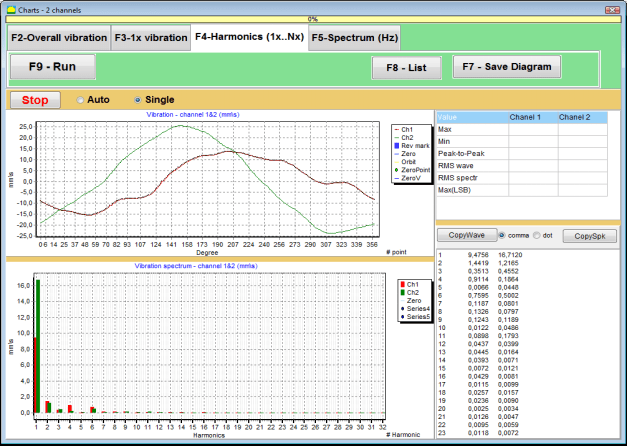
Fig. 7.50. Operating window harmonics of 1x vibration.
Upon readiness press (click) the "F9-Measure" button then the vibration measurement process begins simultaneously on two channels.
After completion of the measurement process in operating window appear charts of time function (higher chart) and harmonics of 1x vibration (lower chart).
The number of harmonic components is plotted on X-axis and RMS of the vibration velocity (mm/sec) is plotted on Y-axis.
Charts of vibration time domain and spectrum
To plot a spectrum chart use "F5-Spectrum" tab:
Then appears an operating window for simultaneous output of charts of wave and spectrum of vibration.

Fig. 7.51. Operating window for the output of the spectrum of vibration.
Upon readiness press (click) the "F9-Measure" button then the vibration measurement process begins simultaneously on two channels.
After completion of the measurement process in operating window appear charts of time function (higher chart) and spectrum of vibration (lower chart).
The vibration frequency is plotted on X-axis and RMS of the vibration velocity (mm/sec) is plotted on Y-axis.
In this case, a chart for the first channel is depicted in red and for the second channel in green.
8. General instructions on operation and maintenance of the device
8.1 Balancing Quality Criteria (ISO 2372 Standard)
The quality of balancing can be evaluated using vibration levels established by ISO 2372 standard. The table below shows acceptable vibration levels for different machine classes:
| Machine Class | Good (mm/sec RMS) |
Acceptable (mm/sec RMS) |
Still Acceptable (mm/sec RMS) |
Unacceptable (mm/sec RMS) |
|---|---|---|---|---|
| Class 1 Small machines on rigid foundations (motors up to 15 kW) |
< 0.7 | 0.7 - 1.8 | 1.8 - 4.5 | > 4.5 |
| Class 2 Medium machines without foundations (motors 15-75 kW), drive mechanisms up to 300 kW |
< 1.1 | 1.1 - 2.8 | 2.8 - 7.1 | > 7.1 |
| Class 3 Large machines on rigid foundations (equipment over 300 kW) |
< 1.8 | 1.8 - 4.5 | 4.5 - 11 | > 11 |
| Class 4 Large machines on lightweight foundations (equipment over 300 kW) |
< 2.8 | 2.8 - 7.1 | 7.1 - 18 | > 18 |
Note: These values provide guidance for evaluating balancing quality. Always refer to specific equipment manufacturer specifications and applicable standards for your application.
8.2 Maintenance Requirements
🔧 Regular Maintenance
- ✓Regular calibration of sensors according to manufacturer specifications
- ✓Keep sensors clean and free from magnetic debris
- ✓Store equipment in protective case when not in use
- ✓Protect laser sensor from dust and moisture
- ✓Check cable connections regularly for wear or damage
- ✓Update software as recommended by manufacturer
- ✓Maintain backup copies of important balancing data
📋 EU Maintenance Standards
Equipment maintenance must comply with:
- EN ISO 9001: Quality management systems requirements
- EN 13306: Maintenance terminology and definitions
- EN 15341: Maintenance key performance indicators
- Regular safety inspections per EU machinery directive
ANNEX 1. ROTOR BALANCING
The rotor is a body that rotates around a certain axis and is held by its bearing surfaces in the supports. Bearing surfaces of the rotor transmit weights to the supports through rolling or sliding bearings. While using the term of "bearing surface" we simply refer to the journal* or journal-replacing surfaces.
*Journal (Zapfen in German for "journal", "pin") - is a part of a shaft or an axis, that is being carried by a holder (bearing box).
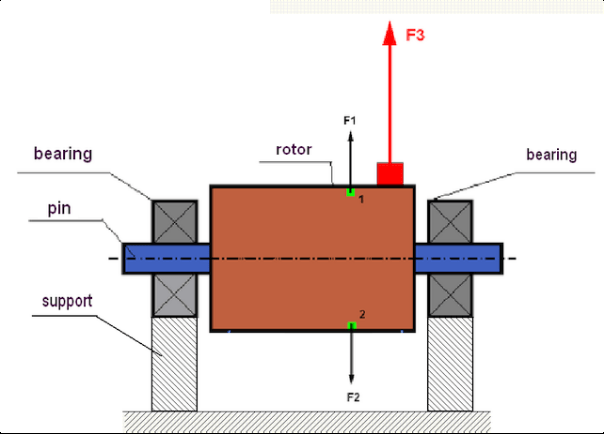
fig.1 Rotor and centrifugal forces.
In a perfectly balanced rotor, its mass is distributed symmetrically regarding the axis of the rotation. This means that any element of the rotor can correspond to another element located symmetrically in a relation to the axis of the rotation. During rotation, each rotor element acts upon by a centrifugal force directed in the radial direction (perpendicular to the axis of the rotor rotation). In a balanced rotor, the centrifugal force influencing any element of the rotor is balanced by the centrifugal force that influences the symmetrical element. For example, elements 1 and 2 (shown in fig.1 and colored in green) are influenced by centrifugal forces F1 and F2: equal in value and absolutely opposite in directions. This is true for all symmetrical elements of the rotor and thus the total centrifugal force influencing the rotor is equal to 0 the rotor is balanced. But if the symmetry of the rotor is broken (in Figure 1, the asymmetric element is marked in red), then the unbalanced centrifugal force F3 begins to act on the rotor.
When rotating, this force changes the direction together with the rotation of the rotor. The dynamic load resulting from this force is transferred to the bearings, which leads to their accelerated wear. In addition, under the influence of this variable force, there is a cyclic deformation of the supports and of the foundation on which the rotor is fixed, which produces vibration. To eliminate the imbalance of the rotor and the accompanying vibration, it is necessary to set balancing masses, that will restore the symmetry of the rotor.
Rotor balancing is an operation to eliminate imbalance by adding balancing masses.
The task of balancing is to find the value and places (angle) of the installation of one or more balancing masses.
The types of rotors and imbalance
Considering the strength of the rotor material and the magnitude of the centrifugal forces influencing it, the rotors can be divided into two types: rigid and flexible.
Rigid rotors at operating conditions under the influence of centrifugal force may become slightly deformed but the influence of this deformation in the calculations may therefore be neglected.
Deformation of flexible rotors on the other hand should never be neglected. The deformation of flexible rotors complicates the solution for the balancing problem and requires the use of some other mathematical models in comparison with the task of balancing rigid rotors. It is important to mention that the same rotor at low speeds of rotation can behave like rigid one and at high speeds it will behave like flexible one. Further on we will consider the balancing of rigid rotors only.
Depending on the distribution of imbalanced masses along the length of the rotor, two types of imbalance can be distinguished – static and dynamic. The same applies to the static and the dynamic rotor balancing.
The static imbalance of the rotor occurs without the rotation of the rotor. In other words, it is quiescent when the rotor is under the influence of gravity and in addition it turns the "heavy point" down. An example of a rotor with the static imbalance is presented in Fig.2

Fig.2
The dynamic imbalance occurs only when the rotor spins.
An example of a rotor with the dynamic imbalance is presented in Fig.3.
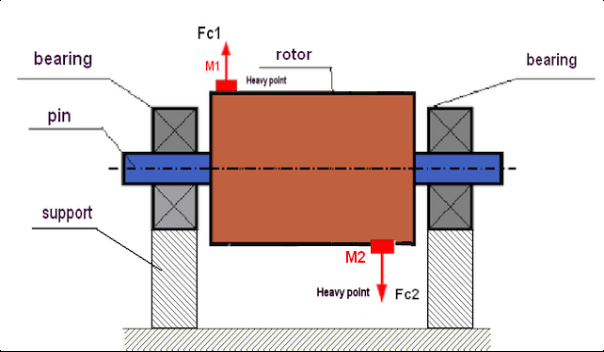
Fig.3. Dynamic imbalance of rotor – couple of the centrifugal forces
In this case, imbalanced equal masses M1 and M2 are located in different surfaces – in different places along the length of the rotor. In the static position, i.e. when the rotor does not spin, the rotor may only be influenced by gravity and the masses therefore will balance each other. In dynamics when the rotor is spinning, the masses M1 and M2 start to be influenced by centrifugal forces FЎ1 and FЎ2. These forces are equal in value and are opposite in the direction. However, since they are located in different places along the length of the shaft and are not on the same line, the forces do not compensate each other. The forces of FЎ1 and FЎ2 create a moment acting on the rotor. That is why this imbalance has another name "momentary". Accordingly, non-compensated centrifugal forces act on the bearing supports, which can significantly exceed the forces that we relied on and also reduce the service life for the bearings.
Since this type of imbalance occurs only in dynamics during the rotor spinning, thus it is called dynamic. It can not be eliminated in the static balancing (or so called "on the knives") or in any other similar ways. To eliminate the dynamic imbalance, it is necessary to set two compensating weights that will create a moment equal in value and opposite in direction to the moment arising from the masses of M1 and M2. Compensating masses do not necessarily have to be installed opposite to the masses M1 and M2 and be equal to them in value. The most important thing is that they create a moment that fully compensates right at the moment of imbalance.
In general, the masses M1 and M2 may not be equal to each other, so there will be a combination of static and dynamic imbalance. It is theoretically proved that for a rigid rotor to eliminate its imbalance it is necessary and sufficient to install two weights spaced along the length of the rotor. These weights will compensate both the moment resulting from the dynamic imbalance and the centrifugal force resulting from the asymmetry of the mass relative to the rotor axis (static imbalance). As usual the dynamic imbalance is typical for long rotors, such as shafts, and static - for narrow. However, if the narrow rotor is mounted skewed in reference to the axis, or worse, deformed (the so-called "wheel wobbles"), in this case it will be difficult to eliminate the dynamic imbalance (see Fig.4), due to the fact that it is difficult to set correcting weights, that create the right compensating moment.
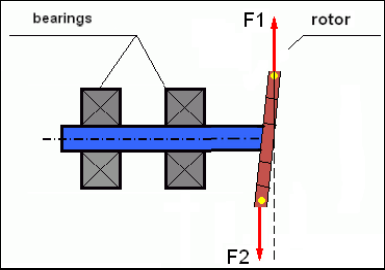
Fig.4 Dynamic balancing of the wobbling wheel
Since the narrow rotor shoulder creates a short moment, it may require correcting weights of a large mass. But at the same time there is an additional so-called "induced imbalance" associated with the deformation of the narrow rotor under the influence of centrifugal forces from the correcting masses.
See the example:
" Methodical instructions on rigid rotors balancing" ISO 1940-1:2003 Mechanical vibration – Balance quality requirements for rotors in a constant (rigid) state – Part 1: Specification and verification of balance tolerances
This is visible for narrow fan wheels, which, in addition to the power imbalance, also influences an aerodynamic imbalance. And it is important to bear in mind that the aerodynamic imbalance, in fact the aerodynamic force, is directly proportional to the angular velocity of the rotor, and to compensate it, the centrifugal force of the correcting mass is used, which is proportional to the square of the angular velocity. Therefore, the balancing effect may only occur at a specific balancing frequency. At other speeds there would be an additional gap. The same can be said about electromagnetic forces in an electromagnetic motor, which are also proportional to the angular velocity. In other words it is impossible to eliminate all causes of vibration of the mechanism by any means of balancing.
Fundamentals of Vibration
Vibration is a reaction of the mechanism design to the effect of cyclic excitation force. This force can have a different nature.
- The centrifugal force arising due to the imbalance of the rotor is an uncompensated force influencing the "heavy point". Particularly this force and also the vibration caused by it are eliminated by the rotor balancing.
- Interacting forces, that have a "geometric" nature and arise out of errors in the manufacture and installation of mating parts. These forces can occur, for instance, due to the non-roundness of the shaft journal, errors in the tooth profiles in gears, the waviness of the bearing raceways, misalignment of the mating shafts, etc. In case of non-roundness of the necks, the shaft axis will shift depending on the angle of rotation of the shaft. Although this vibration is manifested at the rotor speed, it is almost impossible to eliminate it with the balancing.
- Aerodynamic forces arising from the rotation of the impeller fans and other blade mechanisms. Hydrodynamic forces arising from the rotation of hydraulic pump impellers, turbines, etc.
- Electromagnetic forces arising from the operation of electric machines as a result, for example, due to the asymmetry of the rotor windings, the presence of short-circuited turns, etc.
The magnitude of vibration (for example, its amplitude AB) depends not only on the magnitude of the excitation force Fт acting on the mechanism with the circular frequency ω, but also on the stiffness k of the structure of the mechanism, its mass m, and damping coefficient C.

Various types of sensors can be used to measure vibration and balance mechanisms, including:
- absolute vibration sensors designed to measure vibration acceleration (accelerometers) and vibration velocity sensors;
- relative vibration sensors eddy-current or capacitive, designed to measure vibration.
In some cases (when the structure of the mechanism allows it) sensors of force can also be used to examine its vibration weight.
Particularly, they are widely used to measure the vibration weight of the supports of hardbearing balancing machines.
Therefore vibration is the reaction of the mechanism to the influence of external forces. The amount of vibration depends not only on the magnitude of the force acting on the mechanism, but also on the rigidity of the mechanism. Two forces with the same magnitude can lead to different vibrations. In mechanisms with a rigid support structure, even with the small vibration, the bearing units can be significantly influenced by dynamic weights. Therefore, when balancing mechanisms with stiff legs apply the force sensors, and vibration (vibro accelerometers). Vibration sensors are only used on mechanisms with relatively pliable supports, right when the action of unbalanced centrifugal forces leads to a noticeable deformation of the supports and vibration. Force sensors are used in rigid supports even when significant forces arising from imbalance do not lead to significant vibration.
The resonance of the structure
We have previously mentioned that rotors are divided into rigid and flexible. The rigidity or flexibility of the rotor should not be confused with the stiffness or mobility of the supports (foundation) on which the rotor is located. The rotor is considered rigid when its deformation (bending) under the action of centrifugal forces can be neglected. The deformation of the flexible rotor is relatively large: it cannot be neglected.
In this article we only study the balancing of rigid rotors. The rigid (non-deformable) rotor in its turn can be located on rigid or movable (malleable) supports. It is clear that this stiffness/mobility of the supports is relative depending on the speed of rotation of the rotor and the magnitude of the resulting centrifugal forces. The conventional border is the frequency of free oscillations of the rotor supports/foundation. For mechanical systems, the shape and frequency of the free oscillations are determined by the mass and elasticity of the elements of the mechanical system. That is, the frequency of natural oscillations is an internal characteristic of the mechanical system and does not depend on external forces. Being deflected from the equilibrium state, supports tend to return to its equilibrium position due to the elasticity. But due to the inertia of the massive rotor, this process is in the nature of damped oscillations. These oscillations are their own oscillations of the rotor-support system. Their frequency depends on the ratio of the rotor mass and the elasticity of the supports.

When the rotor begins to rotate and the frequency of its rotation approaches the frequency of its own oscillations, the vibration amplitude increases sharply, which can even lead to the destruction of the structure.
There is a phenomenon of mechanical resonance. In the resonance region, a change in the speed of rotation by 100 rpm can lead to an increase in a vibration tenfold. In this case (in the resonance region) the vibration phase changes by 180°.
If the design of the mechanism is poorly designed, and the operating speed of the rotor is close to the natural frequency of oscillations, the operation of the mechanism becomes impossible due to unacceptably high vibration. Standard balancing methods are also impossible, as parameters change dramatically even with a slight change in the speed of rotation. Special methods in the field of resonance balancing are used but they are not well-described in this article. You can determine the frequency of natural oscillations of the mechanism on the run-out (when the rotor is turned off) or by impact with subsequent spectral analysis of the system response to the shock. The "Balanset-1" provides the ability to determine the natural frequencies of mechanical structures by these methods.
For mechanisms whose operating speed is higher than the resonance frequency, that is, operating in the resonant mode, supports are considered as mobile ones and vibration sensors are used to measure, mainly vibration accelerometers that measure the acceleration of structural elements. For mechanisms operating in hard bearing mode, supports are considered as rigid. In this case, force sensors are used.
Linear and nonlinear models of the mechanical system
Mathematical models (linear) are used for calculations when balancing rigid rotors. The linearity of the model means that one model is directly proportionally (linearly) dependent on the other. For example, if the uncompensated mass on the rotor is doubled, then the vibration value will be doubled correspondingly. For rigid rotors you can use a linear model because such rotors are not deformed. It is no longer possible to use a linear model for flexible rotors. For a flexible rotor, with an increase of the mass of a heavy point during rotation, an additional deformation will occur, and in addition to the mass, the radius of the heavy point will also increase. Therefore, for a flexible rotor, the vibration will more than double, and the usual calculation methods will not work. Also, a violation of the linearity of the model can lead to a change in the elasticity of the supports at their large deformations, for example, when small deformations of the supports work some structural elements, and when large in the work include other structural elements. Therefore it is impossible to balance the mechanisms that are not fixed at the base, and, for example, are simply established on a floor. With significant vibrations, the unbalance force can detach the mechanism from the floor, thereby significantly changing the stiffness characteristics of the system. The engine legs must be securely fastened, bolted fasteners tightened, the thickness of the washers must provide sufficient rigidity, etc. With broken bearings, a significant displacement of the shaft and its impacts is possible, which will also lead to a violation of linearity and the impossibility of carrying out high-quality balancing.
Methods and devices for balancing
As mentioned above, balancing is the process of combining the main Central axis of inertia with the axis of rotation of the rotor.
The specified process can be executed in two ways.
The first method involves the processing of the rotor axles, which is performed in such a way that the axis passing through the centers of the section of the axles with the main Central axis of inertia of the rotor. This technique is rarely used in practice and will not be discussed in detail in this article.
The second (most common) method involves moving, installing or removing corrective masses on the rotor, which are placed in such a way that the axis of inertia of the rotor is as close as possible to the axis of its rotation.
Moving, adding or removing corrective masses during balancing can be done using a variety of technological operations, including: drilling, milling, surfacing, welding, screwing or unscrewing screws, burning with a laser beam or electron beam, electrolysis, electromagnetic welding, etc.
The balancing process can be performed in two ways:
- balanced rotors Assembly (in its own bearings);
- balancing of rotors on balancing machines.
To balance the rotors in their own bearings we usually use specialized balancing devices (kits), which allows us to measure the vibration of the balanced rotor at the speed of its rotation in a vector form, i.e. to measure both the amplitude and phase of vibration.
Currently, these devices are manufactured on the basis of microprocessor technology and (in addition to the measurement and analysis of vibration) provide automated calculation of the parameters of corrective weights that must be installed on the rotor to compensate its imbalance.
These devices include:
- measuring and computing unit, made on the basis of a computer or industrial controller;
- two (or more) vibration sensors;
- phase angle sensor;
- equipment for installation of sensors at the facility;
- specialized software designed to perform a full cycle of measurement of rotor unbalance parameters in one, two or more planes of correction.
For balancing rotors on balancing machines in addition to a specialized balancing device (measuring system of the machine) it is required to have an "unwinding mechanism" designed to install the rotor on the supports and ensure its rotation at a fixed speed.
Currently, the most common balancing machines exist in two types:
- over-resonant (with supple supports);
- hard bearing (with rigid supports).
Over-resonant machines have a relatively pliable supports, made, for example, on the basis of the flat springs.
The natural oscillation frequency of these supports is usually 2-3 times lower than the speed of the balanced rotor, which is mounted on them.
Vibration sensors (accelerometers, vibration velocity sensors, etc.) are usually used to measure the vibration of the supports of a resonant machine.
In the hardbearing balancing machines are used relatively-rigid supports, natural oscillation frequencies of which should be 2-3 times higher than the speed of the balanced rotor.
Force sensors are usually used to measure the vibration weight on the supports of the machine.
The advantage of the hard bearing balancing machines is that they can be balanced at relatively low rotor speeds (up to 400-500 rpm), which greatly simplifies the design of the machine and its foundation, as well as increases the productivity and safety of balancing.
Balancing technique
⚠️ Balancing eliminates only the vibration which is caused by the asymmetry of the rotor mass distribution relative to its axis of rotation. Other types of the vibration cannot be eliminated by the balancing!
Balancing is the subject to technically serviceable mechanisms, the design of which ensures the absence of resonances at the operating speed, securely fixed on the foundation, installed in serviceable bearings.
🚫 The faulty mechanism is the subject to a repair, and only then – to a balancing. Otherwise, qualitative balancing impossible.
Balancing cannot be a substitute for repair!
The main task of balancing is to find the mass and the place (angle) of installation of compensating weights, which are balanced by centrifugal forces.
As mentioned above, for rigid rotors it is generally necessary and sufficient to install two compensating weights. This will eliminate both the static and dynamic rotor imbalance. A general scheme of the vibration measurement during balancing looks like the following:
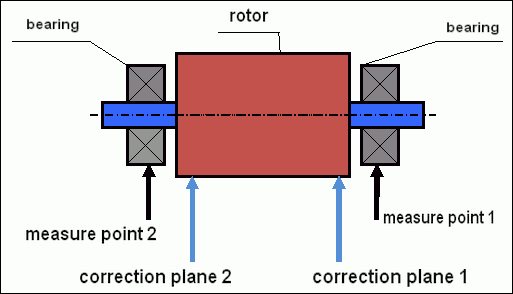
fig.5 Dynamic balancing – correction planes and measure points
Vibration sensors are installed on the bearing supports at points 1 and 2. The speed mark is fixed right on the rotor, a reflective tape is glued usually. The speed mark is used by the laser tachometer to determine the speed of the rotor and the phase of the vibration signal.
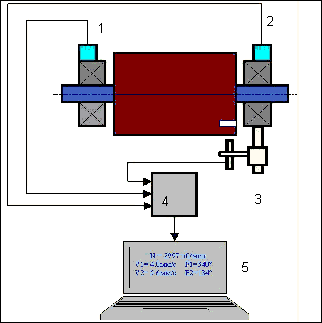
fig. 6. Installation of sensors during balancing in two planes, using Balanset-1
1,2-vibration sensors, 3-phase, 4- USB measuring unit, 5-laptop
In most cases, dynamic balancing is carried out by the method of three starts. This method is based on the fact that test weights of an already-known mass are installed on the rotor in series in 1 and 2 planes; so the masses and the place of installation of balancing weights are calculated based on the results of changing the vibration parameters.
The place of installation of the weight is called the correction plane. Usually, the correction planes are selected in the area of the bearing supports on which the rotor is mounted.
The initial vibration is measured at the first start. Then, a trial weight of a known mass is installed on the rotor closer to one of the supports. Then the second start is performed, and we measure the vibration parameters, that should change because of the installation of the trial weight. Then the trial weight in the first plane is removed and installed in the second plane. The third start-up is performed and the vibration parameters are measured. When the trial weight is removed, the program automatically calculates the mass and the place (angles) of the installation of balancing weights.
The point in setting up test weights is to determine how the system responds to the imbalance change. When we know the masses and the location of the sample weights, the program can calculate the so-called influence coefficients, showing how the introduction of a known imbalance affects the vibration parameters. The coefficients of influence are the characteristics of the mechanical system itself and depend on the stiffness of the supports and the mass (inertia) of the rotor-support system.
For the same type of mechanisms of the same design, the coefficients of influence will be similar. You can save them in your computer memory and use them afterwards for balancing the same type of mechanisms without carrying out test runs, which greatly improves the performance of the balancing. We should also note that the mass of test weights should be chosen as such so that the vibration parameters vary markedly when installing test weights. Otherwise, the error in calculating the coefficients of the affect increases and the quality of balancing deteriorates.
A guide to the device Balanset-1 provides a formula by which you can approximately determine the mass of the trial weight, depending on the mass and the speed of the rotation of the balanced rotor. As you can understand from Fig. 1 the centrifugal force acts in the radial direction, i.e. perpendicular to the rotor axis. Therefore, vibration sensors should be installed so that their sensitivity axis is also directed in the radial direction. Usually the rigidity of the foundation in the horizontal direction is less, so the vibration in the horizontal direction is higher. Therefore, to increase the sensitivity of the sensors should be installed so that their axis of sensitivity could also be directed horizontally. Although there is no fundamental difference. In addition to the vibration in the radial direction, it is necessary to control the vibration in the axial direction, along the axis of rotation of the rotor. This vibration is usually caused not by imbalance, but by other reasons, mainly due to misalignment and misalignment of shafts connected through the coupling. This vibration is not eliminated by balancing, in this case alignment is required. In practice, usually in such mechanisms there is an imbalance of the rotor and misalignment of the shafts, which greatly complicates the task of eliminating the vibration. In such cases, you must first align and then balance the mechanism. (Although with a strong torque imbalance, vibration also occurs in the axial direction due to the" twisting " of the foundation structure).
Measurement Accuracy and Error Analysis
Understanding measurement accuracy is critical for professional balancing operations. The Balanset-1A provides the following measurement precision:
| Parameter | Accuracy Formula | Example (for typical values) |
|---|---|---|
| RMS Vibration Velocity | ±(0.1 + 0.1×Vmeasured) mm/sec | For 5 mm/sec: ±0.6 mm/sec For 10 mm/sec: ±1.1 mm/sec |
| Rotation Frequency | ±(1 + 0.005×Nmeasured) rpm | For 1000 rpm: ±6 rpm For 3000 rpm: ±16 rpm |
| Phase Measurement | ±1° | Constant accuracy across all speeds |
⚠️ Critical for Accurate Balancing
- !Trial weight must cause >20-30% amplitude change and/or >20-30° phase change
- !If changes are smaller, measurement errors significantly increase
- !Vibration amplitude and phase stability should not vary more than 10-15% between measurements
- !If variation exceeds 15%, check for resonance conditions or mechanical issues
Criteria for assessing the quality of balancing mechanisms
Quality of rotor (mechanisms) balancing can be estimated in two ways. The first method involves comparing the value of the residual imbalance determined during the balancing with the tolerance for the residual imbalance. The specified tolerances for various classes of rotors installed in the standard ISO 21940-11 «Mechanical vibration – Rotor balancing – Part 11: Procedures and tolerances for rotors with rigid behaviour» (formerly ISO 1940-1).
However, the implementation of these tolerances can not fully guarantee the operational reliability of the mechanism associated with the achievement of a minimum level of vibration. This is due to the fact that the vibration of the mechanism is determined not only by the amount of force associated with the residual imbalance of its rotor, but also depends on a number of other parameters, including: the rigidity K of the structural elements of the mechanism, its mass M, damping coefficient, and the speed. Therefore, to assess the dynamic qualities of the mechanism (including the quality of its balance) in some cases, it is recommended to assess the level of residual vibration of the mechanism, which is regulated by a number of standards.
The most common standard regulating permissible vibration levels of mechanisms is ISO 10816-3:2009 Preview Mechanical vibration – Evaluation of machine vibration by measurements on non-rotating parts -- Part 3: Industrial machines with nominal power above 15 kW and nominal speeds between 120 r/min and 15 000 r/min when measured in situ.»
With its help, you can set the tolerance on all types of machines, taking into account the power of their electric drive.
In addition to this universal standard, there are a number of specialized standards developed for specific types of mechanisms. For example,
- ISO 14694:2003 "Industrial fans – Specifications for balance quality and vibration levels"
- ISO 7919-1-2002 "Vibration of machines without reciprocating motion. Measurements on rotating shafts and evaluation criteria. General guidance.»
🛡️ Important Safety Considerations for EU Compliance
- !Risk Assessment Required: Perform EN ISO 12100 risk assessment before balancing operations
- !Qualified Personnel: Only trained and certified personnel should perform balancing operations
- !Personal Protective Equipment: Always use appropriate PPE per EN 166 (eye protection) and EN 352 (hearing protection)
- !Emergency Procedures: Establish clear emergency shutdown procedures and ensure all operators are familiar with them
- !Documentation: Maintain detailed records of all balancing operations for traceability and compliance
EU Compliance and Safety Information
Declaration of Conformity
The Balanset-1A portable balancer complies with the following European Union directives and standards:
| EU Directive/Standard | Compliance Details | Safety Requirements |
|---|---|---|
| Machinery Directive 2006/42/EC | Safety requirements for machinery and safety components | Risk assessment, safety instructions, CE marking |
| EMC Directive 2014/30/EU | Electromagnetic compatibility requirements | Immunity to electromagnetic interference |
| RoHS Directive 2011/65/EU | Restriction of hazardous substances | Lead-free, mercury-free, cadmium-free components |
| WEEE Directive 2012/19/EU | Waste electrical and electronic equipment | Proper disposal and recycling procedures |
| EN ISO 12100:2010 | Safety of machinery - General principles for design | Risk assessment and risk reduction |
| EN 60825-1:2014 | Safety of laser products - Part 1 | Class 2 laser safety requirements |
| EN ISO 14120:2015 | Guards - General requirements | Protection against rotating machinery hazards |
Electrical Safety Standards
- ✓EN 61010-1: Safety requirements for electrical equipment for measurement, control, and laboratory use
- ✓EN 60950-1: Information technology equipment safety (USB powered device)
- ✓IEC 61000 series: Electromagnetic compatibility standards
- ✓Operating voltage: 5V DC via USB (Extra Low Voltage)
- ✓Power consumption: < 2.5W
- ✓Protection class: IP54 (dust-protected; splash-water resistant)
Rotating Equipment Safety
⚠️ Mandatory Safety Procedures (EN ISO 12100)
WARNING: When working with rotating machinery, observe the following safety requirements:
- !EN ISO 14118: Prevention of unexpected start-up - Use lockout/tagout procedures before sensor installation
- !EN ISO 14120: Ensure all rotating equipment is properly guarded
- !EN ISO 13857: Maintain minimum safe distances from rotating parts (500mm for body, 120mm for fingers)
- !Personal Protective Equipment: Wear safety glasses per EN 166, hearing protection per EN 352, and avoid loose clothing
- !Never install sensors or trial weights on rotating machinery while in motion
- !Ensure machine is completely stopped and secured before sensor installation
- !Emergency stop: Must be accessible within 3 meters of operator position
- !Only qualified and certified personnel should perform balancing operations
Laser Safety Classification
🔴 Class 2 Laser Device (EN 60825-1:2014)
- Wavelength: 650 nm (Red visible light)
- Maximum output power: < 1 mW
- Beam diameter: 3-5 mm at 100mm distance
- Divergence: < 1.5 mrad
- Safety classification: Eye safe for momentary exposure (< 0.25 sec)
- Required labeling: "LASER RADIATION - DO NOT STARE INTO BEAM - CLASS 2 LASER PRODUCT"
- Access class: Unrestricted (general access permitted)
Laser Safety Procedures:
- Never intentionally stare into laser beam
- Do not aim laser at persons, vehicles, or aircraft
- Avoid viewing laser beam with optical instruments (telescopes, binoculars)
- Be aware of specular reflections from shiny surfaces
- Turn off laser when not in use
- Report any eye exposure incidents immediately
- Use laser safety glasses (OD 2+ at 650nm) for extended exposure
Measurement Accuracy and Calibration
| Parameter | Accuracy | Calibration Frequency |
|---|---|---|
| Vibration amplitude | ±5% of reading | Annually or after 1000 hours |
| Phase measurement | ±1° | Annually |
| Rotation speed | ±0.1% of reading | Annually |
| Sensor sensitivity | 13 mV/(mm/s) ±10% | When replacing sensors |
Environmental Compliance
- ✓Operating environment: 5°C to 50°C, < 85% RH non-condensing
- ✓Storage environment: -20°C to 70°C, < 95% RH non-condensing
- ✓Altitude: Up to 2000m above sea level
- ✓Vibration resistance: IEC 60068-2-6 (10-500 Hz, 2g acceleration)
- ✓Shock resistance: IEC 60068-2-27 (15g, 11ms duration)
- ✓IP rating: IP54 (dust-protected; splash-water resistant)
Operation Requirements
- ✓Operators must be trained in machinery safety per EU standards
- ✓Risk assessment required per EN ISO 12100 before use
- ✓Maintain equipment per manufacturer specifications
- ✓Report any safety incidents or equipment malfunctions immediately
- ✓Maintain detailed records of all balancing operations for traceability
Documentation Requirements
For EU compliance, maintain the following documentation:
- ✓Risk assessment documentation per EN ISO 12100
- ✓Operator training records and certifications
- ✓Equipment calibration and maintenance logs
- ✓Balancing operation records with dates, operators, and results
- ✓Safety incident reports and corrective actions
- ✓Equipment modification or repair documentation
Technical Support and Service
For technical support, calibration services, and spare parts:
- ✓Manufacturer: Vibromera
- ✓Location: Narva, Estonia (EU)
- ✓Website: https://vibromera.eu
- ✓Support languages: All major languages. Text-based communication available.
- ✓Service coverage: Worldwide shipping available
- ✓Warranty: 12 months from date of purchase
- ✓Calibration service: Available through authorized service centers